Using the Engine Guild website
A guided tour of engine.tcgguilds.co.uk - first as a player, then as a developer running a game. Screenshots come from a test copy of the site showing Alliantra, so your numbers and menus may differ slightly. Click any screenshot to see it full size.
1. The basics
Your account
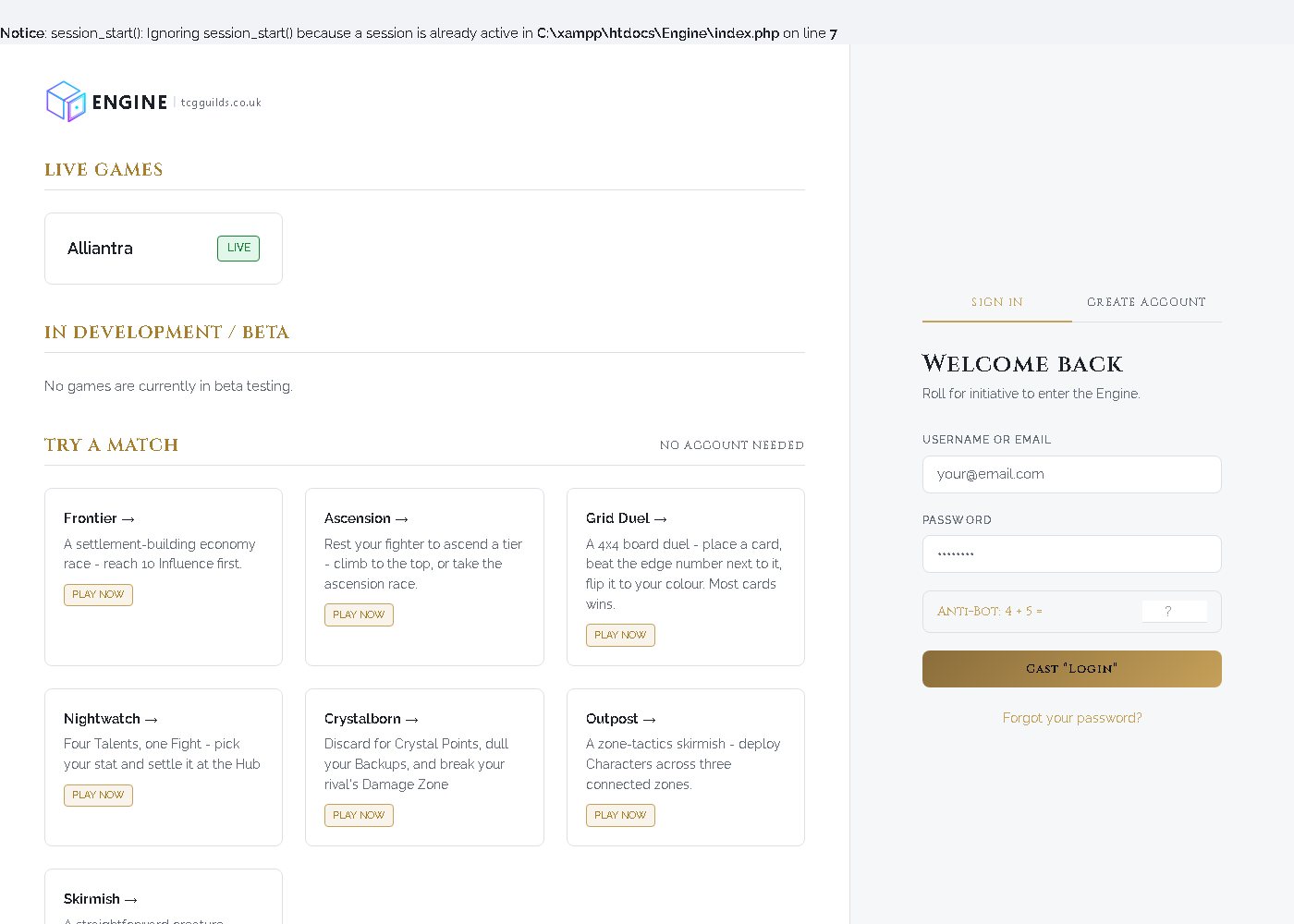
- Choose Create Account. Pick Player to play games, or Developer to make one.
- Developers enter their TCG Studio licence key (from the itch.io download page) when signing up.
- Answer the small anti-bot sum and sign in. You land on your Dashboard.
The menus
| Menu | What's in it |
|---|---|
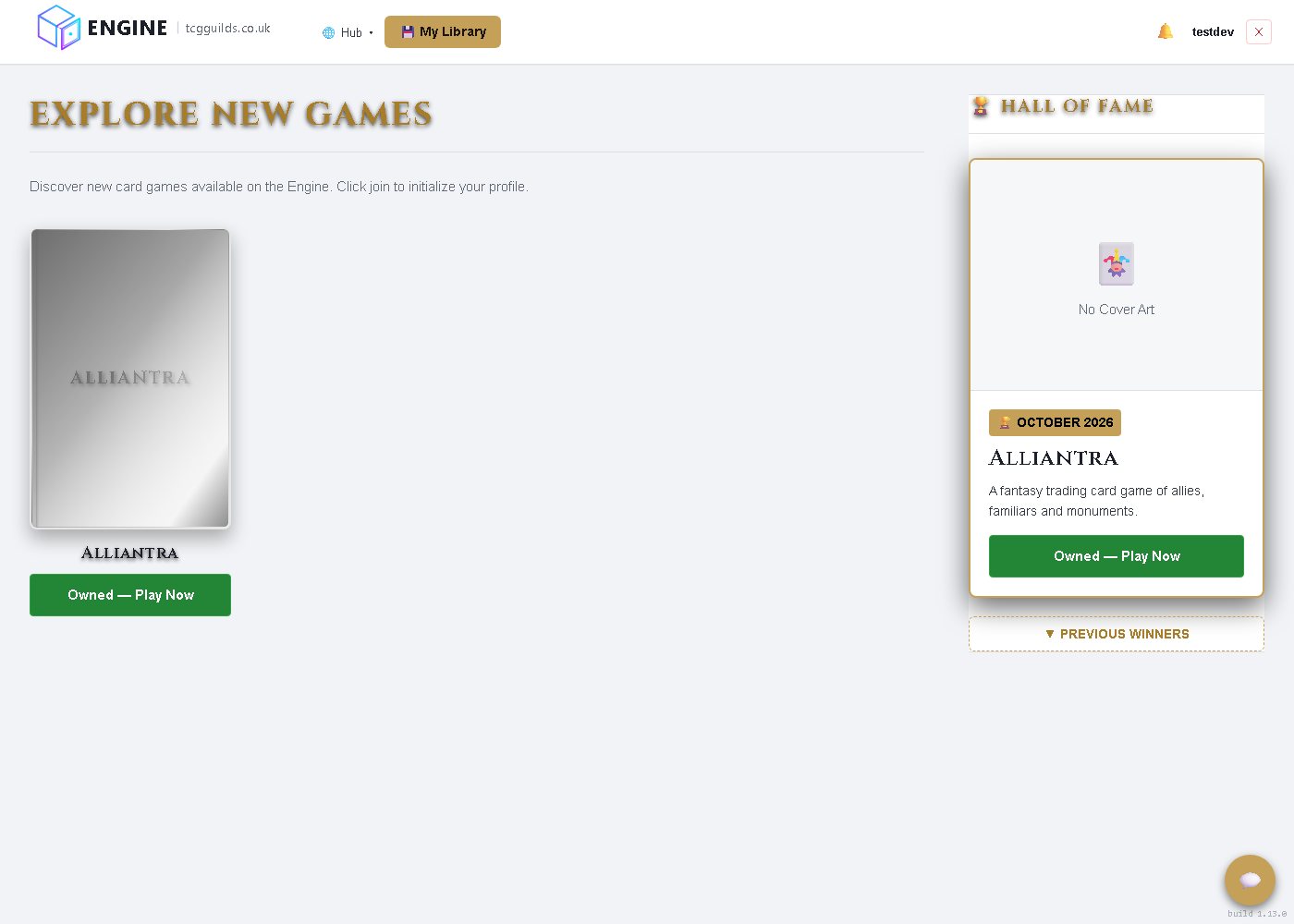
| Hub | Play: Dashboard, Explore Games, My Library · Community: Studios, News, Engine Roadmap, Tutorials, Discord Support · Account: Profile & Settings (and TCG Studio Licence for developers). |
| Game menu (game name) | Appears once you're inside a game. Play: Portal, Studio, Story Mode, How to Play, Tournaments, Quests & Season Pass · Cards & Shop: Cards, Shop & Trade · Account: your {Game} Profile and Report Player. Story Mode, How to Play, Tournaments and Quests only show if the game uses them. |
| ▶ Play | Jumps straight into a match for the current game. |
| Dev Tools | Developers only - see Part B. |
| Top right | Notifications, your rank, XP and currency for the current game, your name, and sign out. |
Part A - Playing
Dashboard
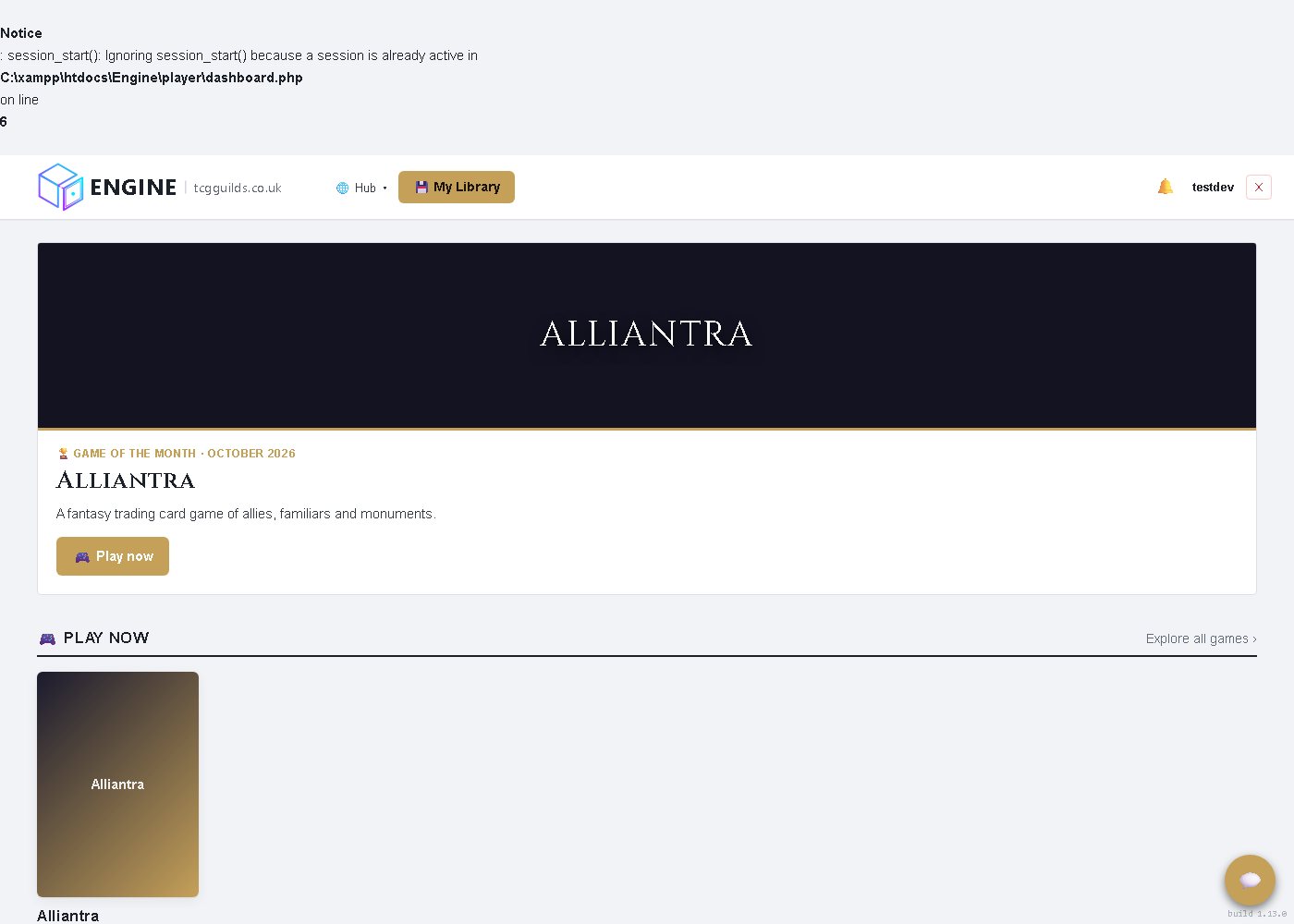
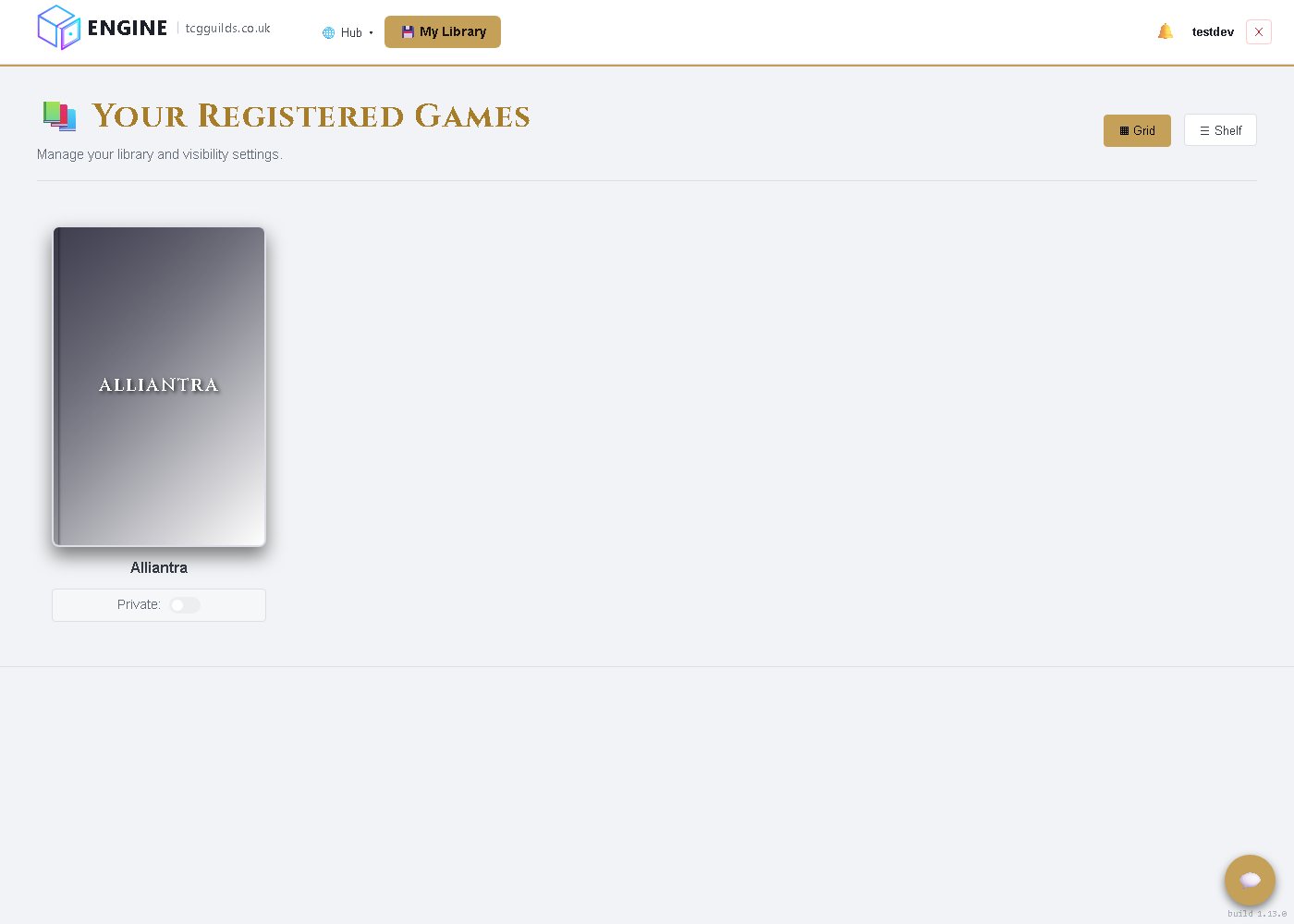
On every Hub page the menu bar shows a big My Library button for your registered games.
Explore & My Library
Game portal
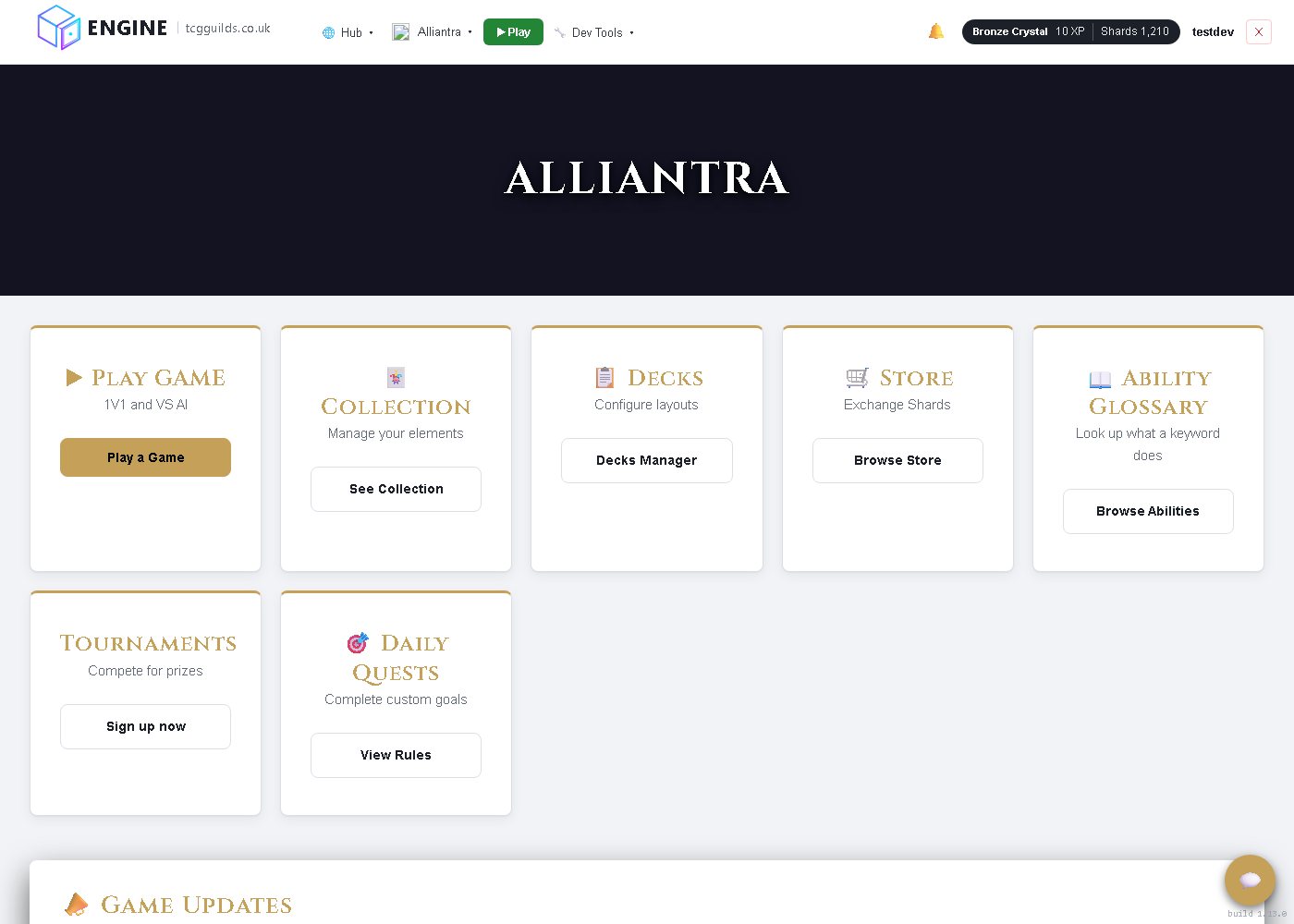
Play a Game starts a 1v1 match against another player or against the AI. If the developer has added them, Story Mode and How to Play appear in the game menu too.
Cards: Collection
{Game} › Cards is one page with tabs: Collection, Decks, Open Packs, Ability Glossary and, when the game credits its artists, Artists.
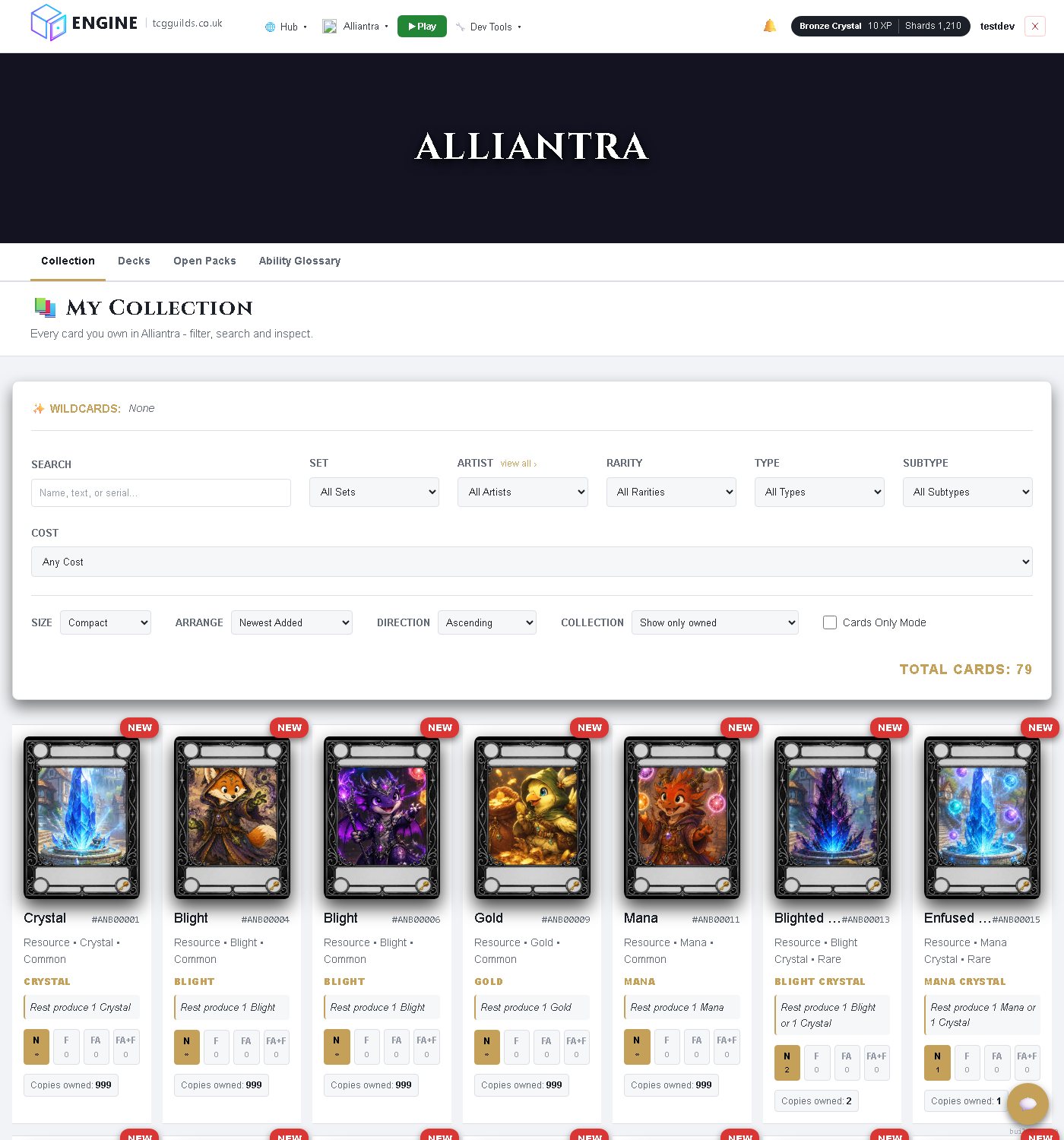
- Click a card to see it full size and read it properly.
- Each card shows how many you own of each version: N (normal), F (foil), FA (full art) and FA+F (full-art foil).
- Arrange sorts by newest, name, rarity, cost or artist. Show only owned switches to every card in the game. Cards Only Mode hides the details.
- Artist › view all opens the Artists tab.
- Wildcards at the top can be turned into cards you're missing.
Cards: Decks
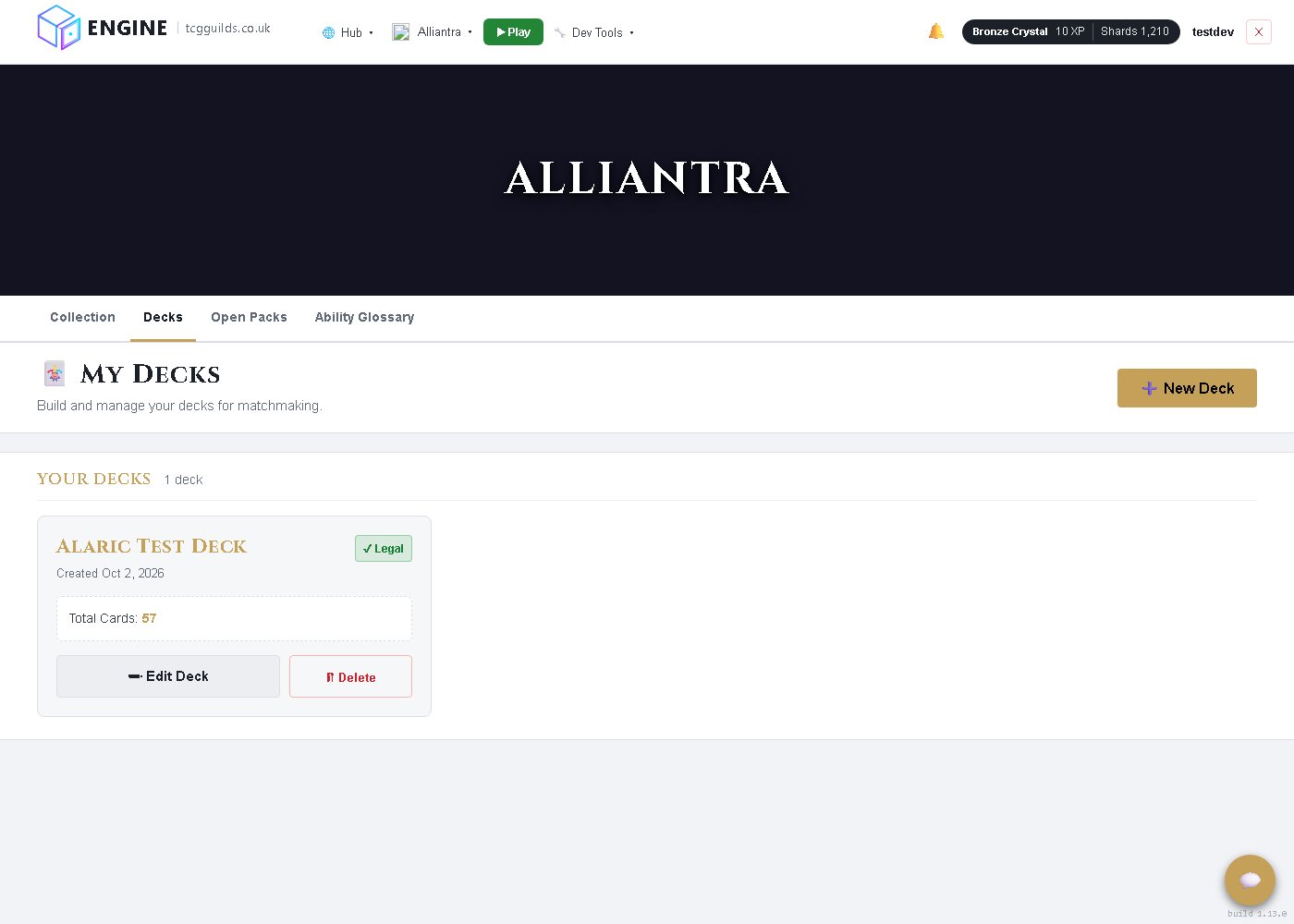

The checklist covers the game's deck rules - for example a Leader, a minimum number of cards, and resource or monument sub-decks. A deck can only be used in a match once every item is ticked.
Cards: Open Packs, Ability Glossary & Artists
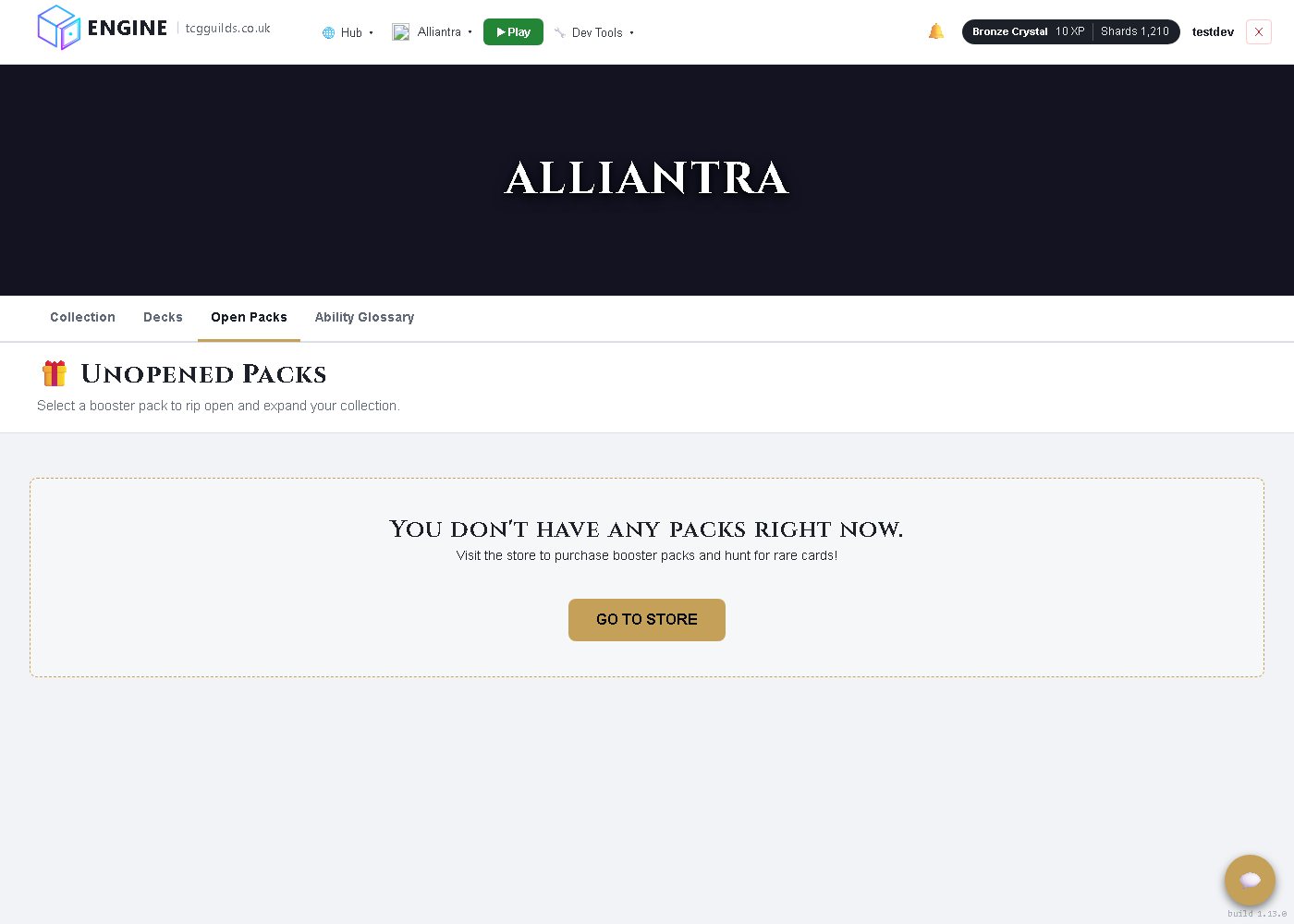
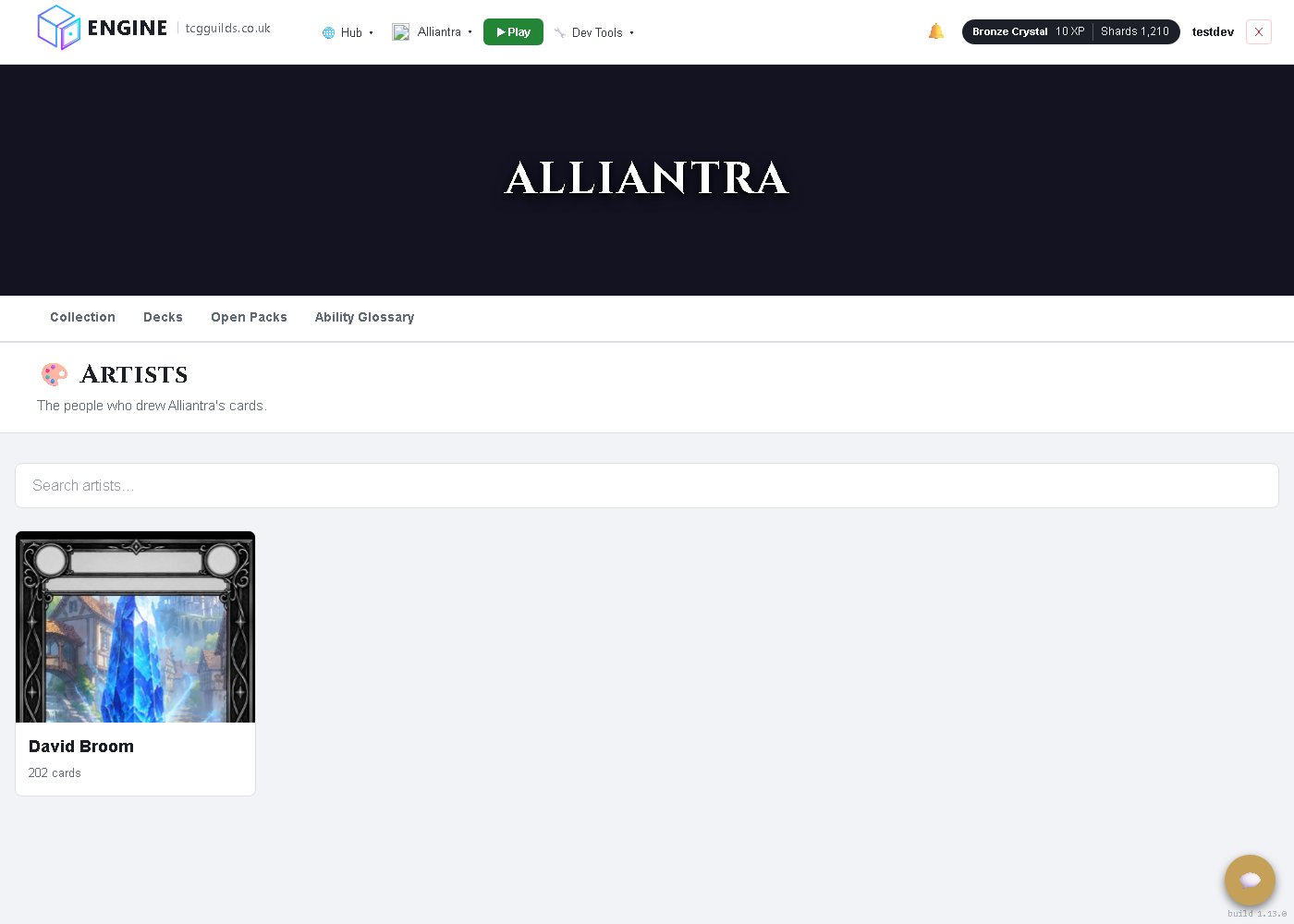
The Ability Glossary tab explains every keyword in the game.
Shop & Trade: Store
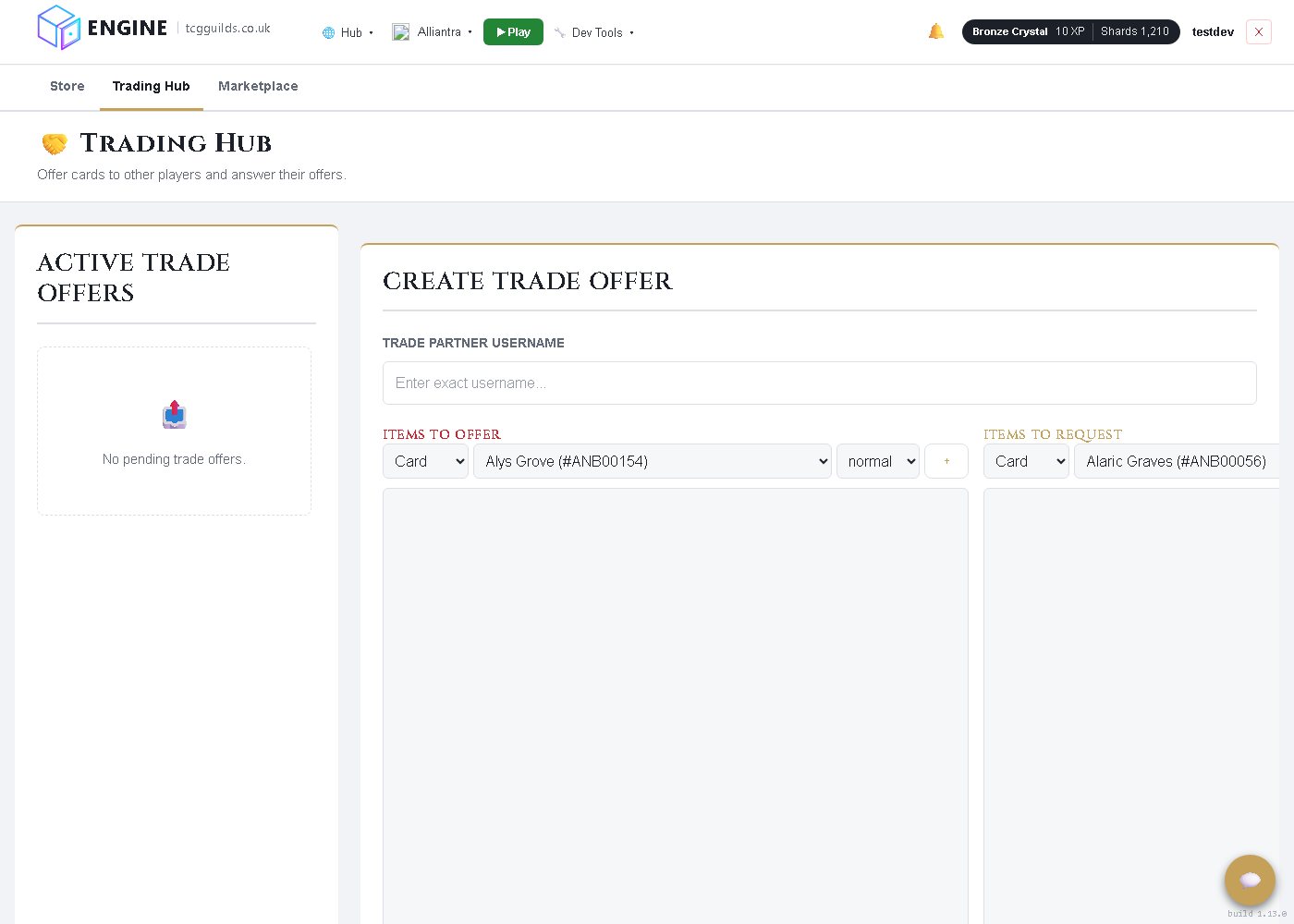
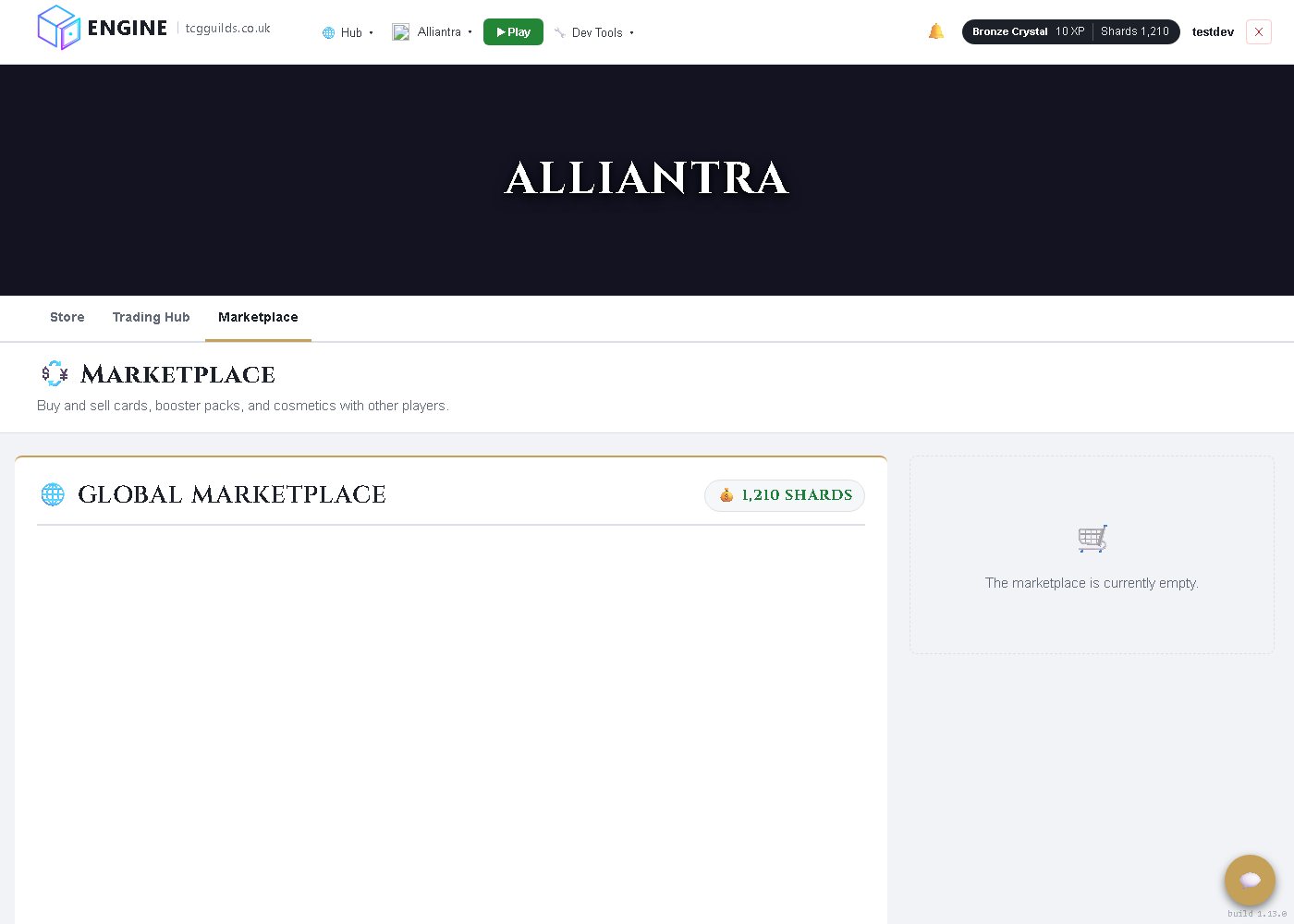
{Game} › Shop & Trade has tabs for the Store, the Trading Hub and the Marketplace.
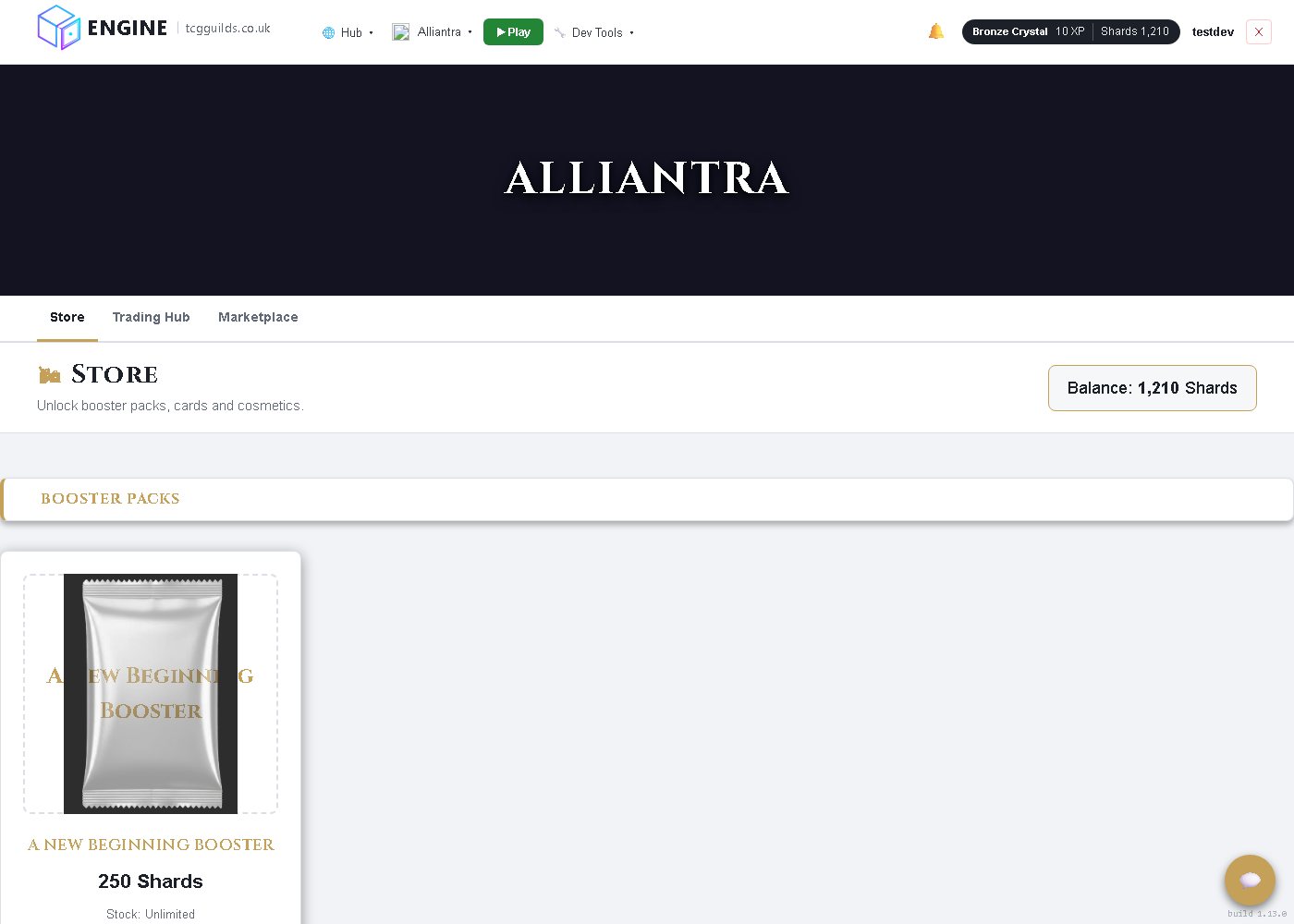
- Items priced in the game's currency (here, Shards) unlock with your balance - earned by playing, quests and rewards.
- Items with a real-money price offer Unlock with Card and/or Unlock with PayPal, depending on what the developer has set up. Payment goes to the game's developer.
- Packs you unlock wait in Cards › Open Packs.
Shop & Trade: Trading Hub & Marketplace
Quests & Season Pass
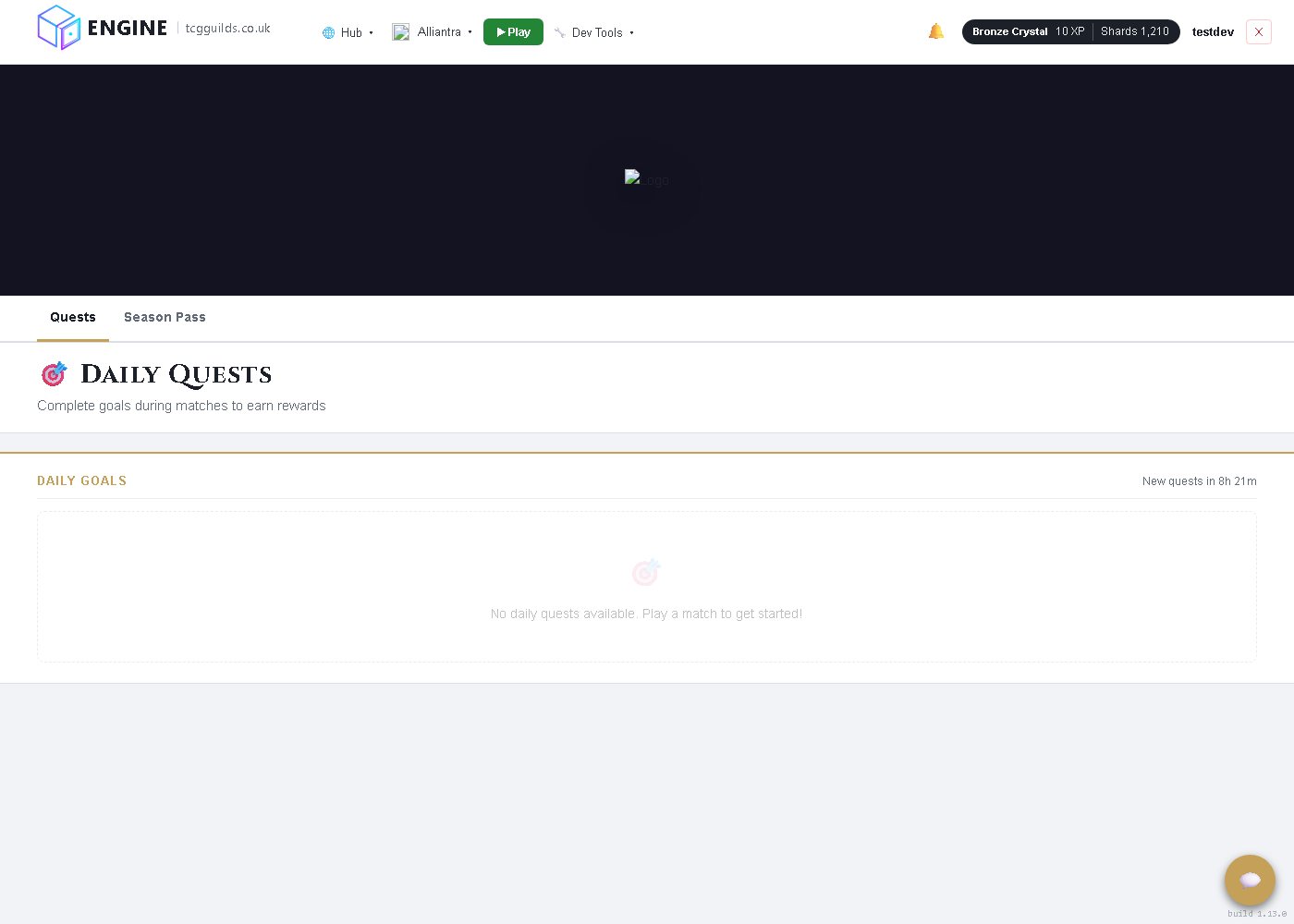
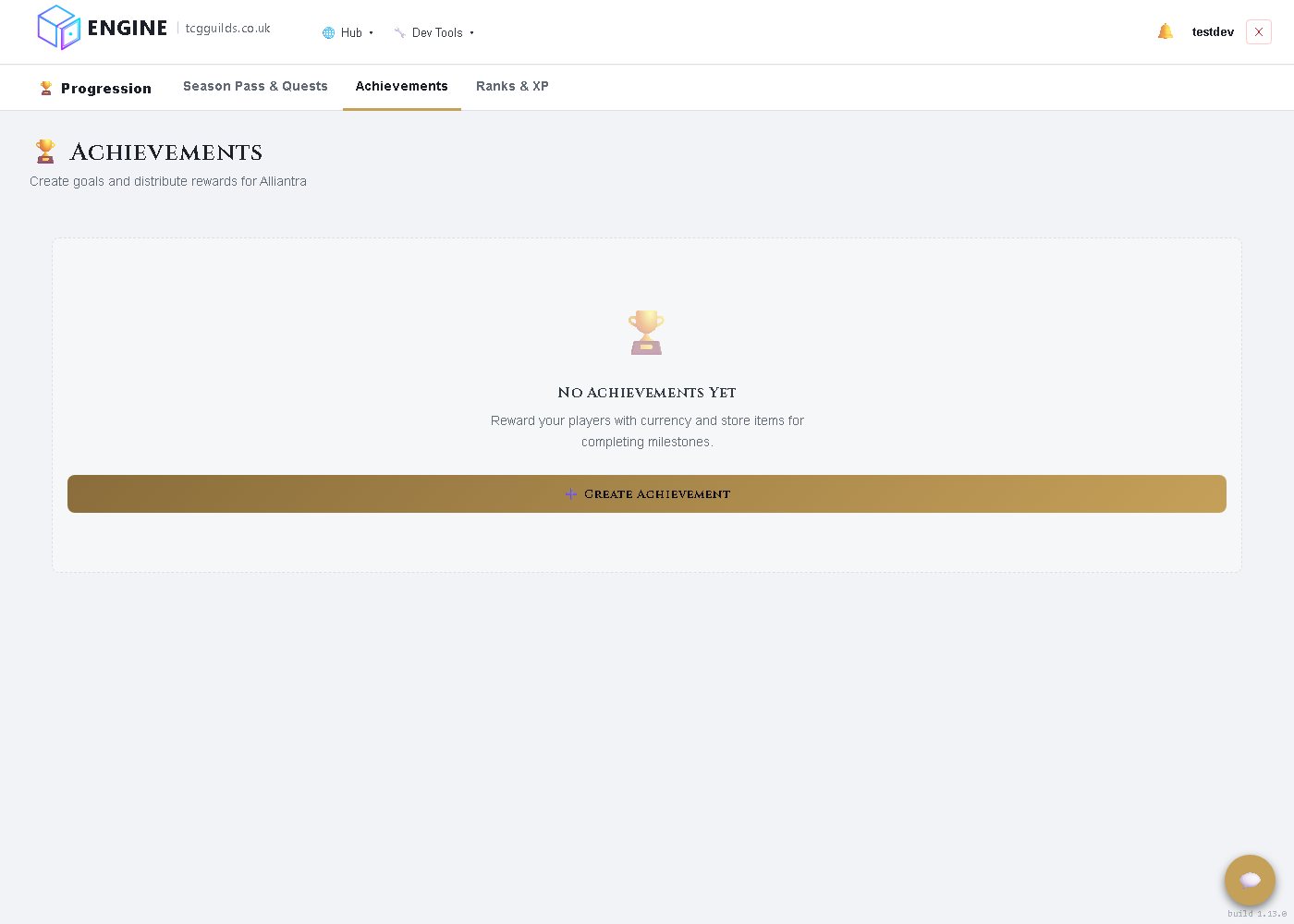
When a game runs a season, the Season Pass tab shows a reward track. Everyone earns the free track; the Premium Pass unlocks the second track, including rewards for milestones you've already reached. Achievements are on your game profile.
Tournaments
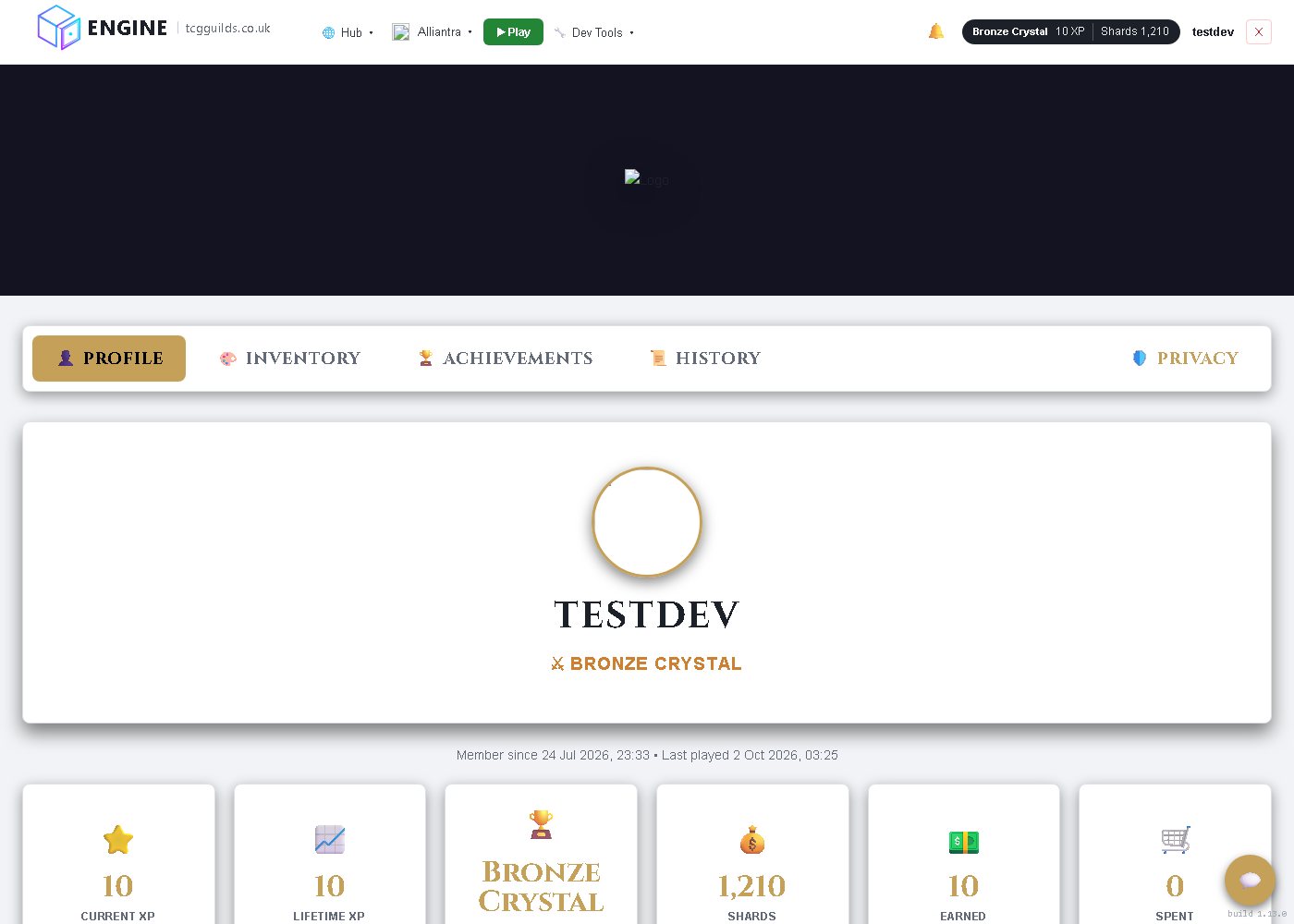
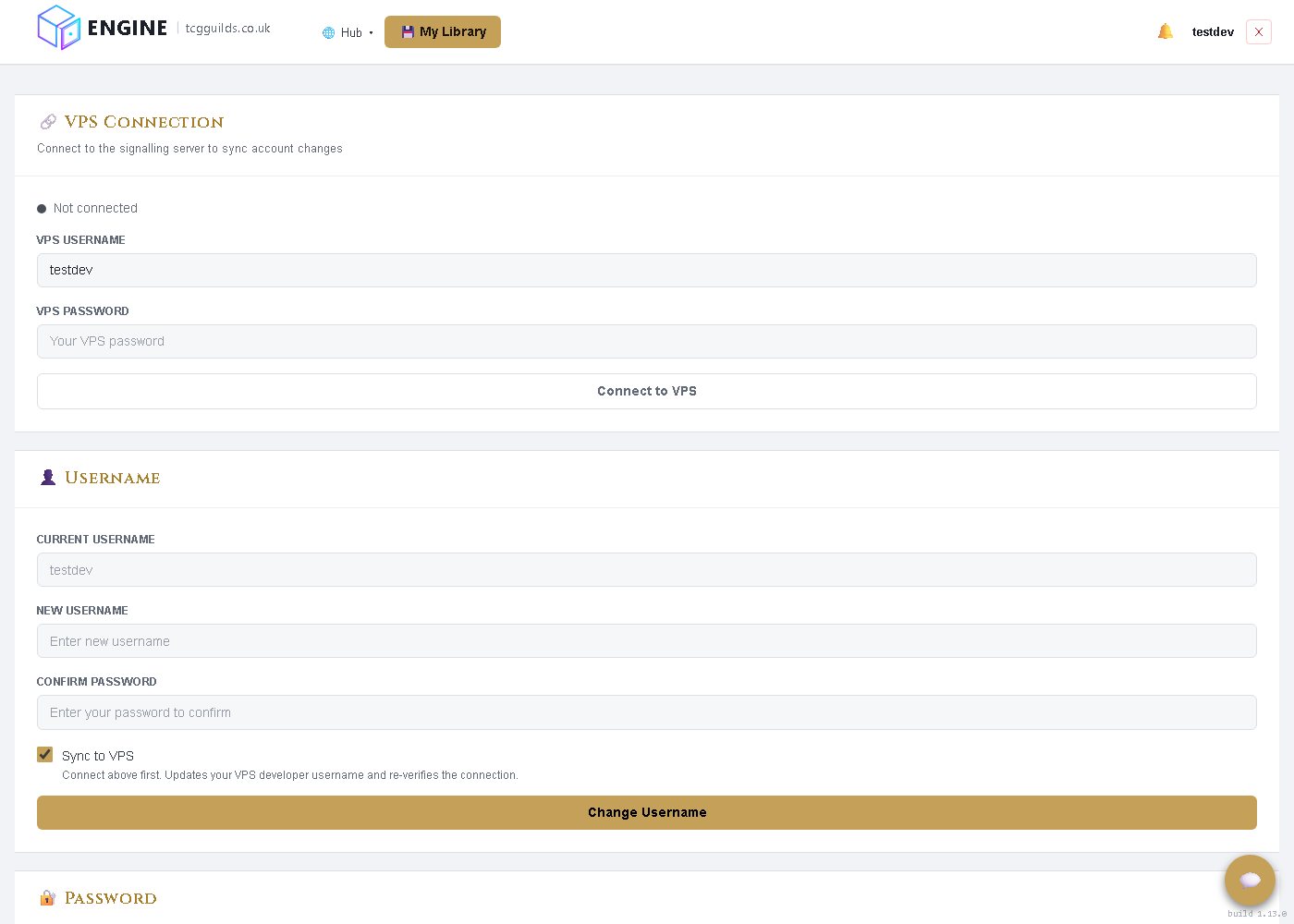
Game profile & account
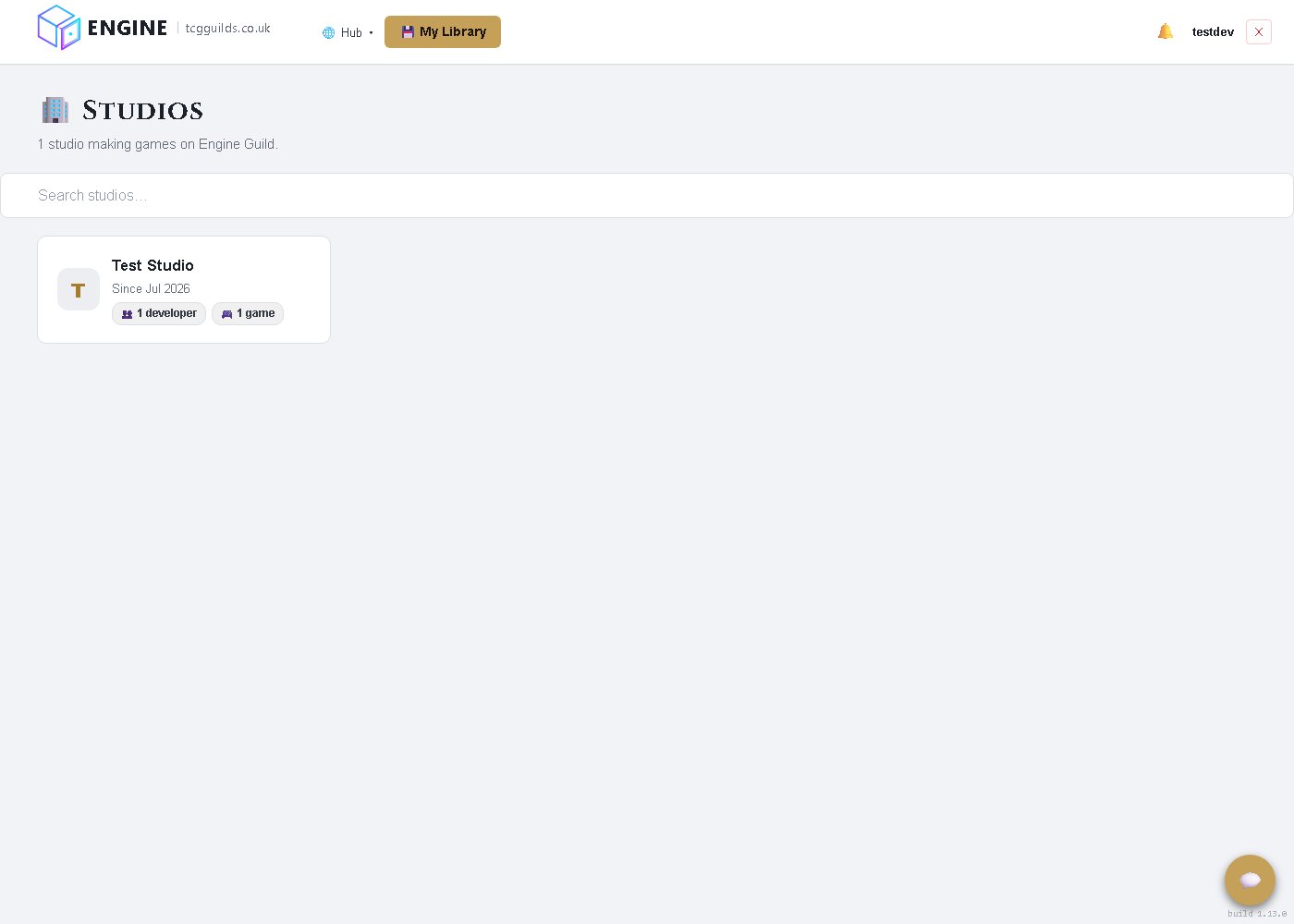
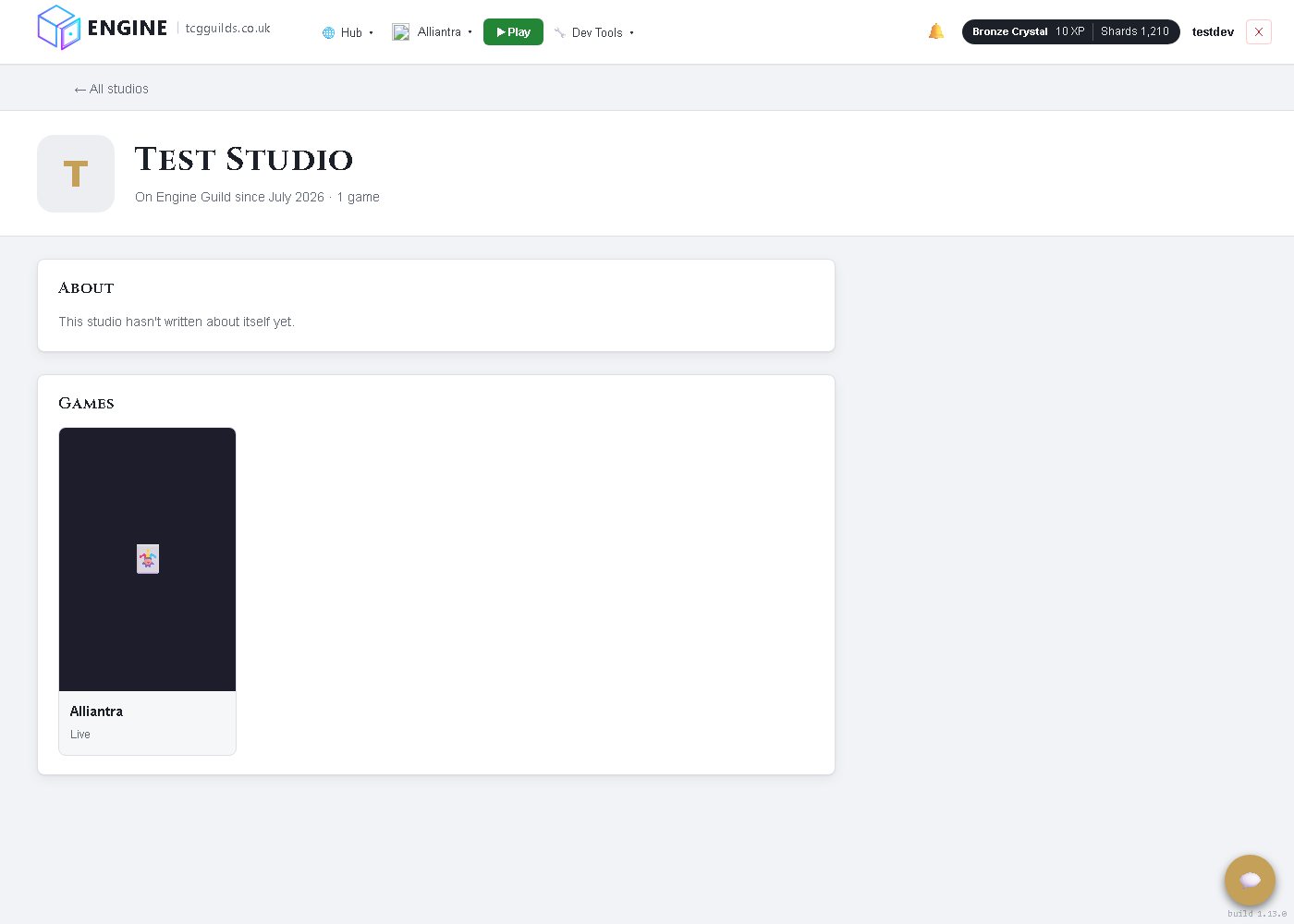
Studios & roadmap
Part B - Running a game
Becoming a developer
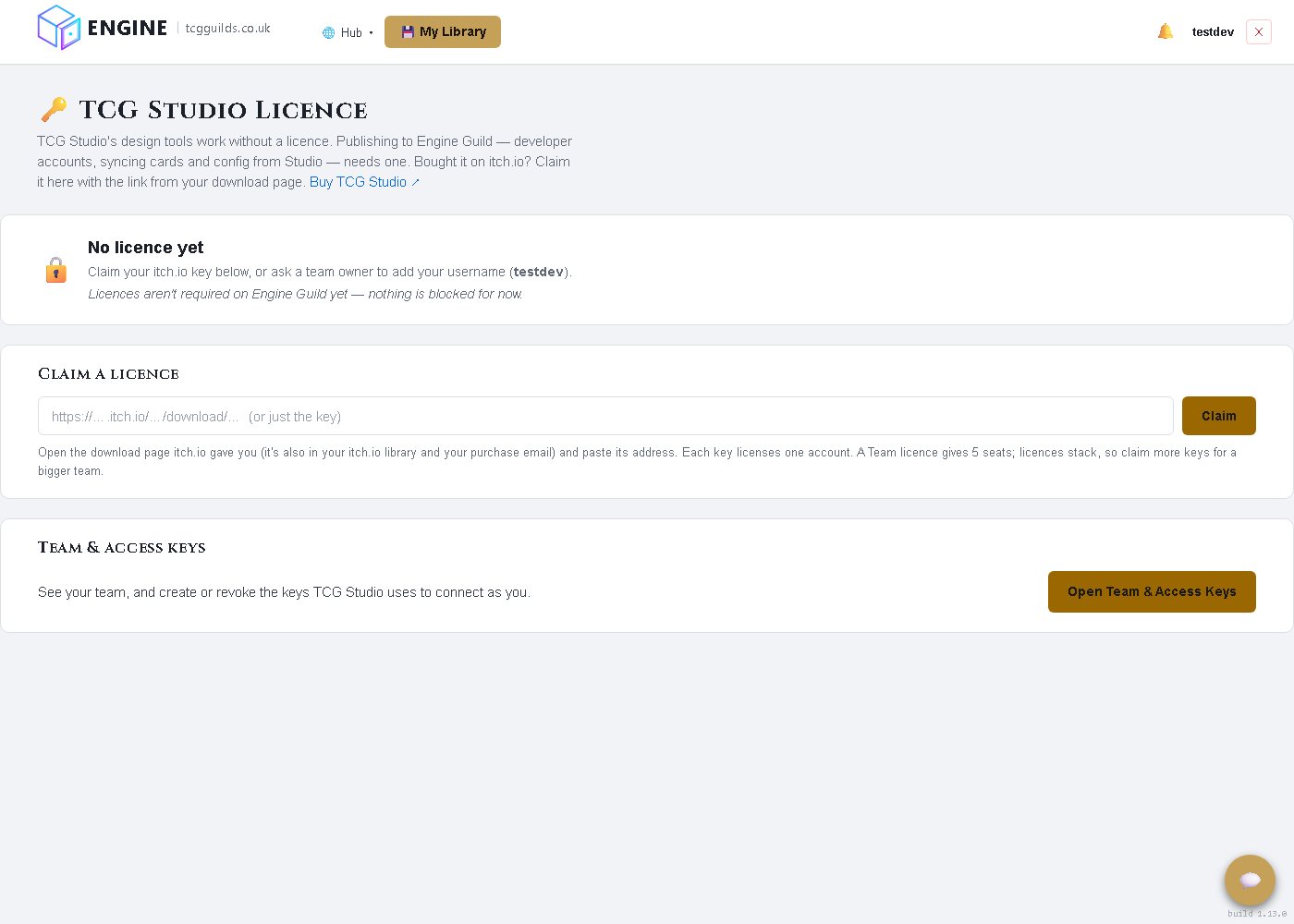
- Buy TCG Studio on itch.io (a Solo or Team licence) and create a Developer account with the licence key - or claim the licence later at Hub › TCG Studio Licence.
- Make your cards in TCG Studio (see the TCG Studio tutorial).
- Create your game on Dev Tools › My Games, then sign in from Studio and sync.
The Dev Tools menu
Related tools are combined into tabbed pages, so Dev Tools has one entry per page. The first column shows your dev session - the game you're working on. Choosing a “{Game} Settings” link also switches your session to that game.
| Column | Page | Tabs |
|---|---|---|
| Dev session | Dashboard & Analytics | One page |
| My Games | - | |
| {Game} Settings | Game configuration only | |
| UI Customization | Appearance, Battlefield UI, Interface Sounds | |
| Cards & Economy | Card Management | Card Sync, Card Studio, Foil Settings, Set Balance, Card Feedback, Ability Visibility, Sounds & Animation |
| Stores & Packs | Boosters, Store, RWC Store | |
| Player Economy | Trade, Market, Match Payouts | |
| Financials | One page | |
| Live Ops | Progression | Season Pass & Quests, Achievements, Ranks & XP |
| Tournaments | - | |
| Story & Tutorials | Story Mode, Tutorial Editor | |
| Engine Guide | - | |
| Community | Players & Team | Players, Moderators, Team & Access Keys, Studio Profile |
| Game Admin | Game Terms, Dev Account, Reset All Player Stats |
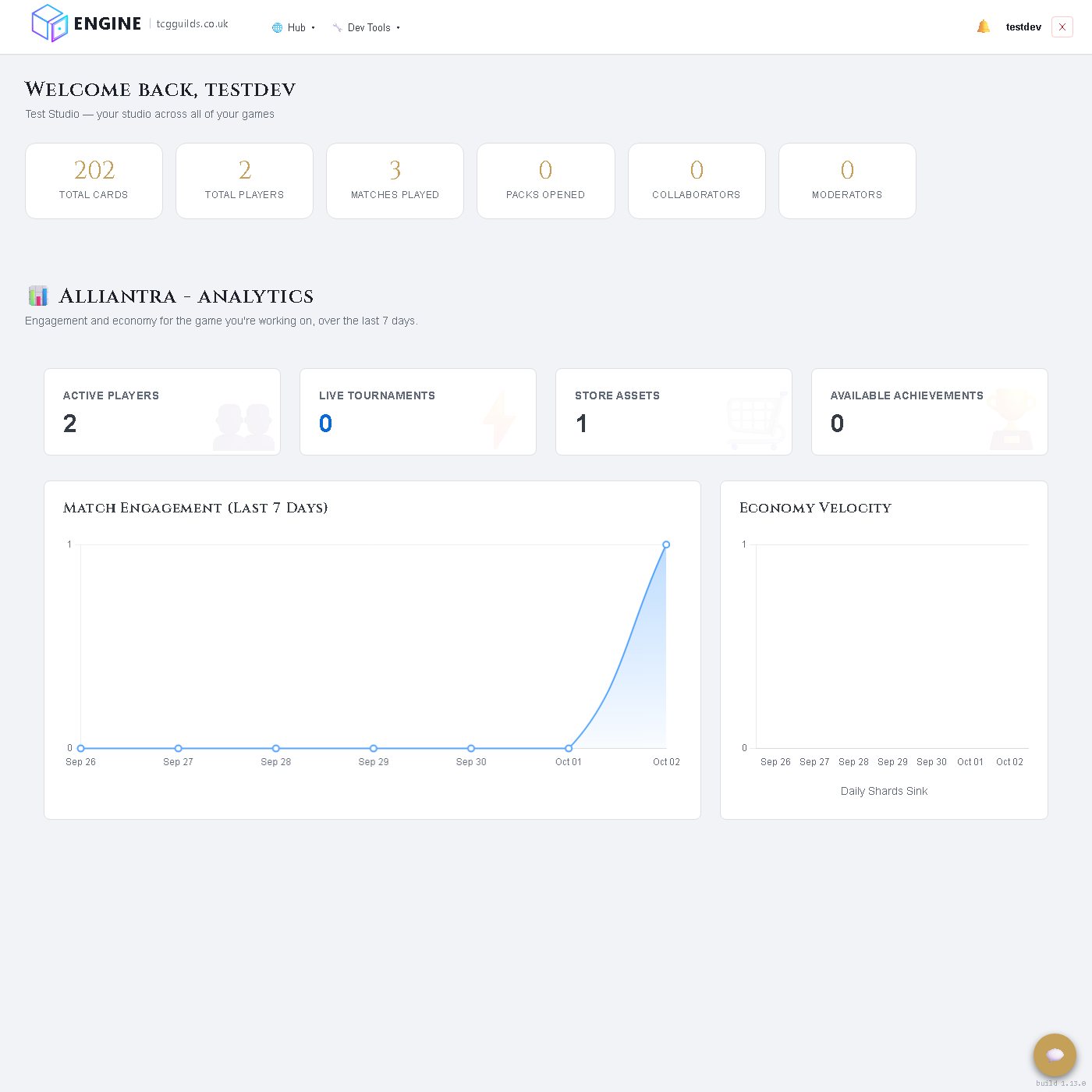
Dashboard & Analytics
My Games
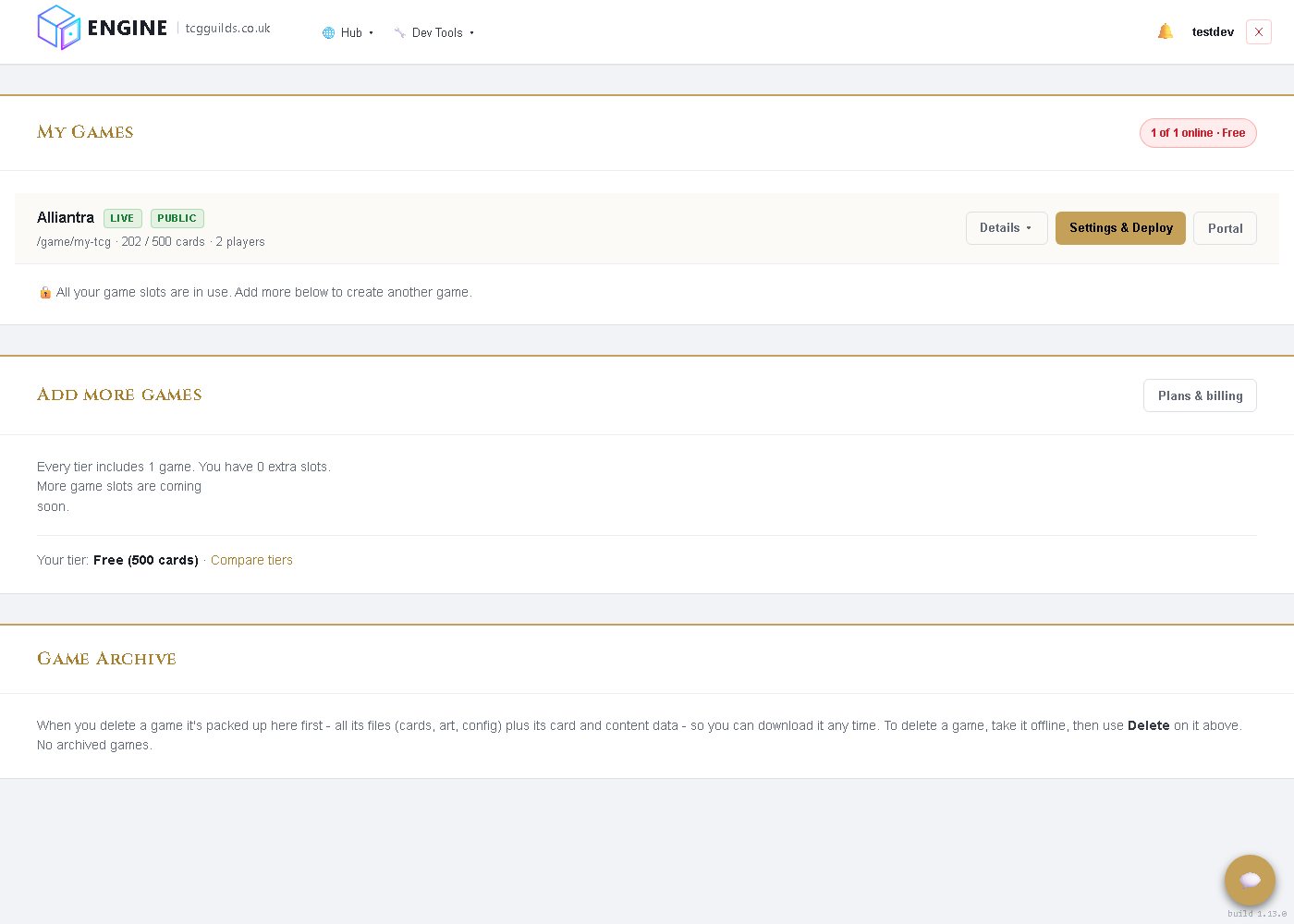
- Details ▾ opens a game's stats and Access & Visibility: Public/Private, Live/Offline, and Early Access with an access code.
- Every plan includes one online game; game slots add more. Offline games are kept but don't use a slot.
- Each game shows its cards against your plan's card allowance. If a game is over (for example after a downgrade), nothing is deleted - you're shown how to make room or move up a tier.
- Deleting a game: take it offline first, then Delete and type its name. It's packed into your Game Archive (all files plus card and content data) for you to download.
{Game} Settings
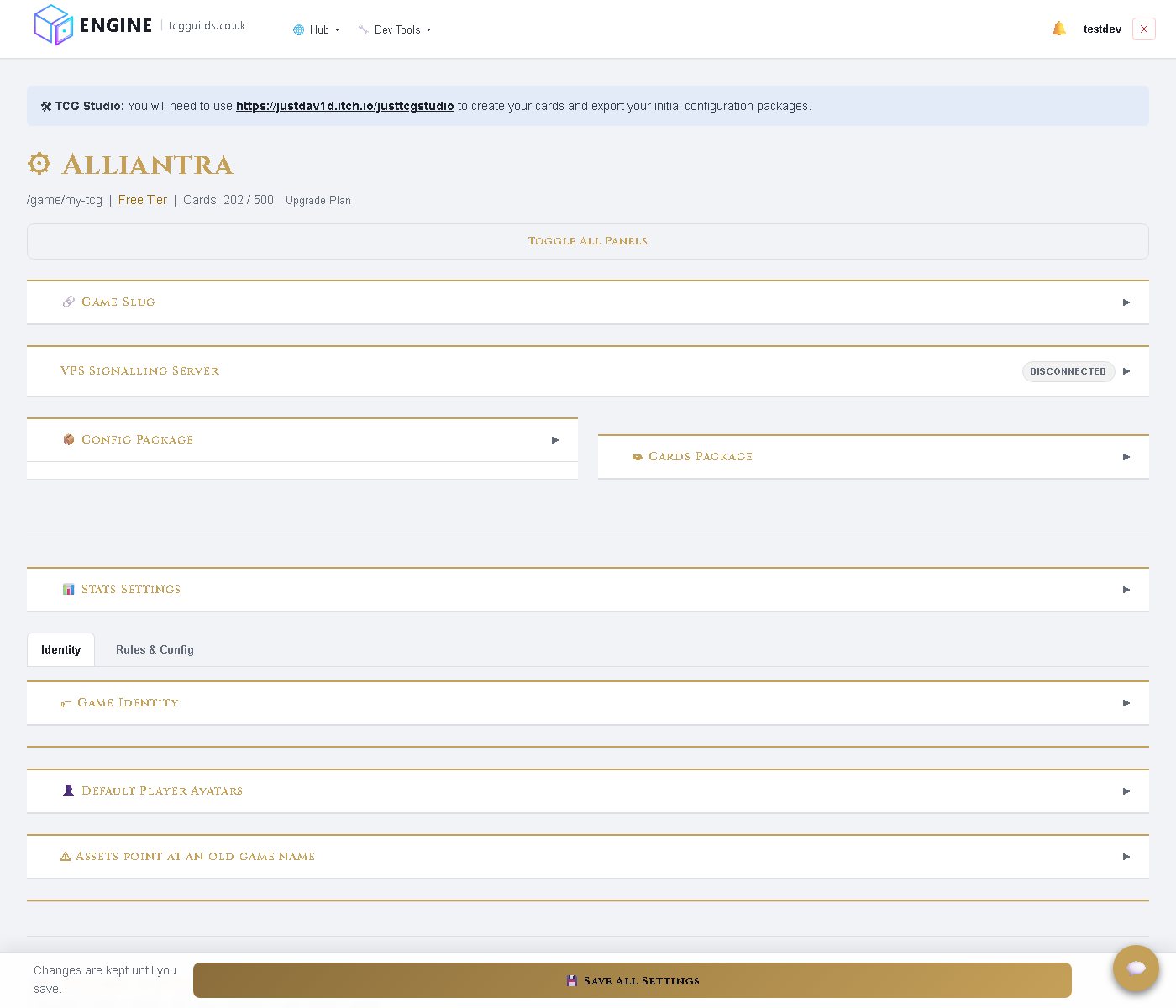
- Game Slug - the game's web address.
- VPS Signalling Server - connects your own match server for online play.
- Config Package / Cards Package - upload a ZIP built by TCG Studio's Export tab (syncing from Studio does the same automatically).
- Game Identity, Default Player Avatars, Counter Icons and Portal Configuration.
- Gameplay Rules and Cost Icon - deck sizes, starting life and hand, currency name, terminology and the match configuration.
- Game Updates - post news to your players - and the Asset Library.
UI Customization
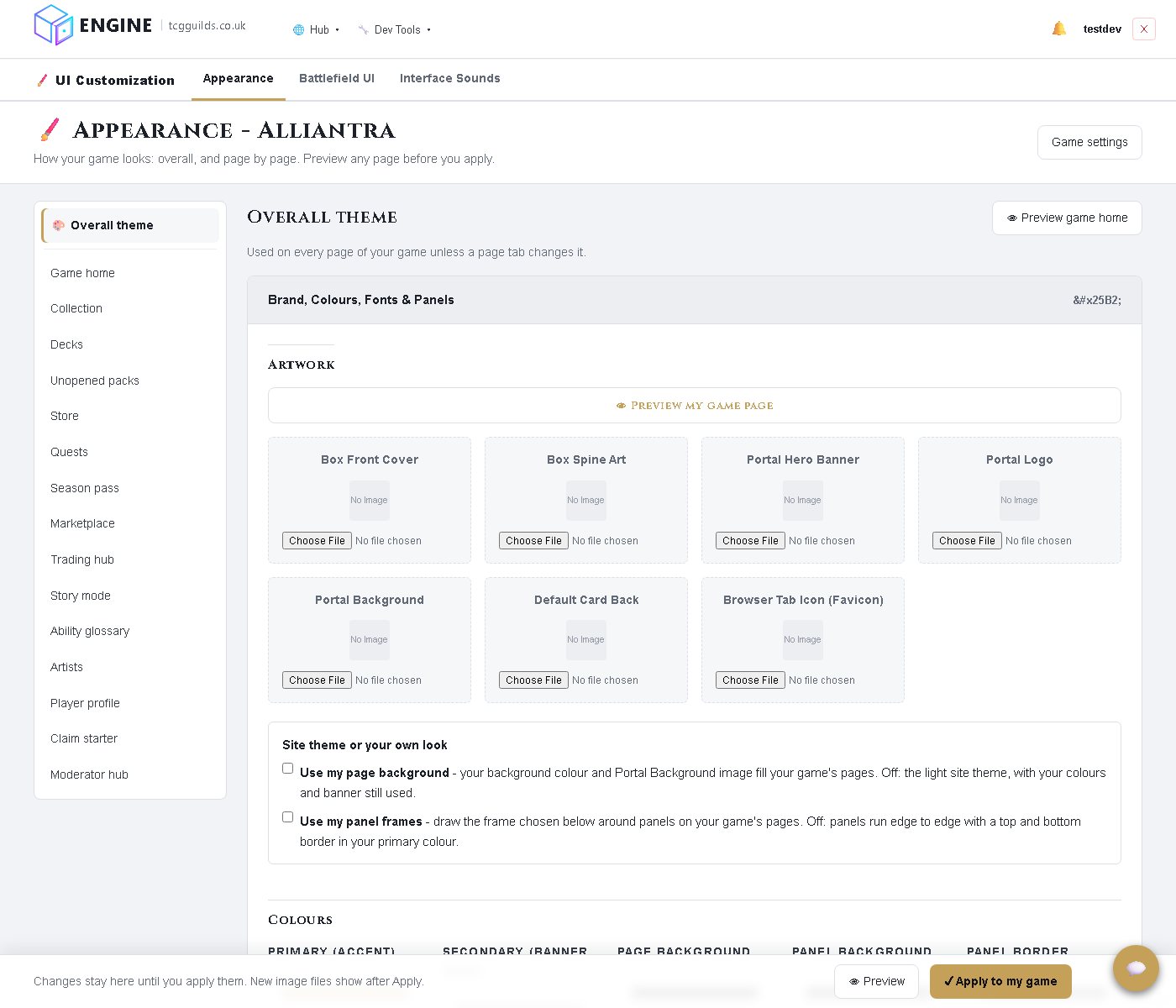
- Appearance holds all your branding: artwork, colours, fonts, frames and menu icons. Overall theme applies to every page of your game; each page then has its own tab where you can change any of those for just that page, plus its title, banner and icons.
- Preview opens the real page with your unsaved changes, so you see exactly what players will see. Nothing changes for players until you press Apply.
- Battlefield UI sets the look and layout of a match: zones, Layout Studio, player info, buttons, panels, the phase timeline and where pop-ups appear.
- Interface Sounds sets the sounds for clicks and other interface events (Tier 1 and above).
Card Management
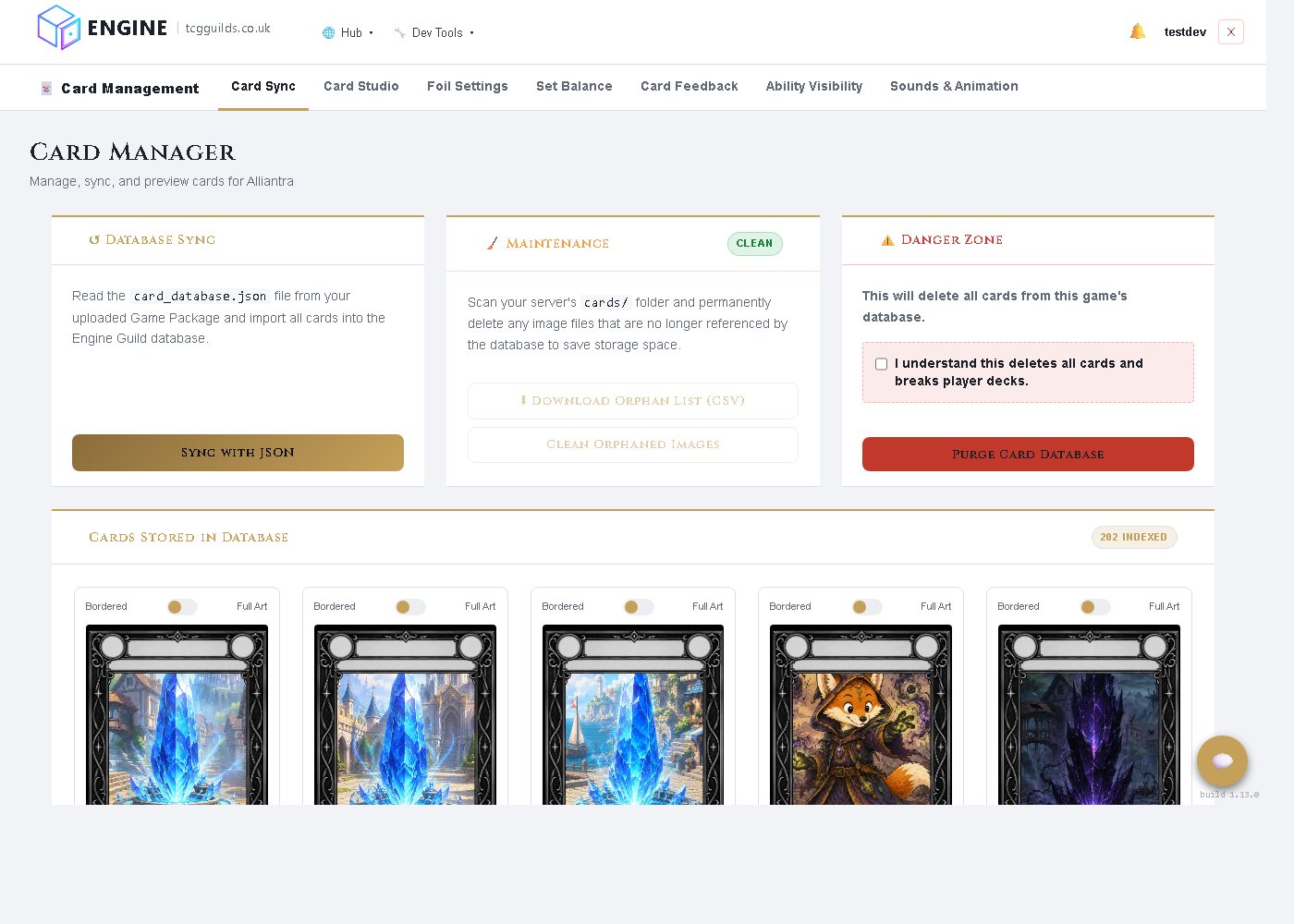
Sync with JSON re-imports the card database from your uploaded package. Maintenance finds image files no card uses any more and can clean them up. Purge Card Database deletes every card - it breaks player decks, so it asks you to confirm.
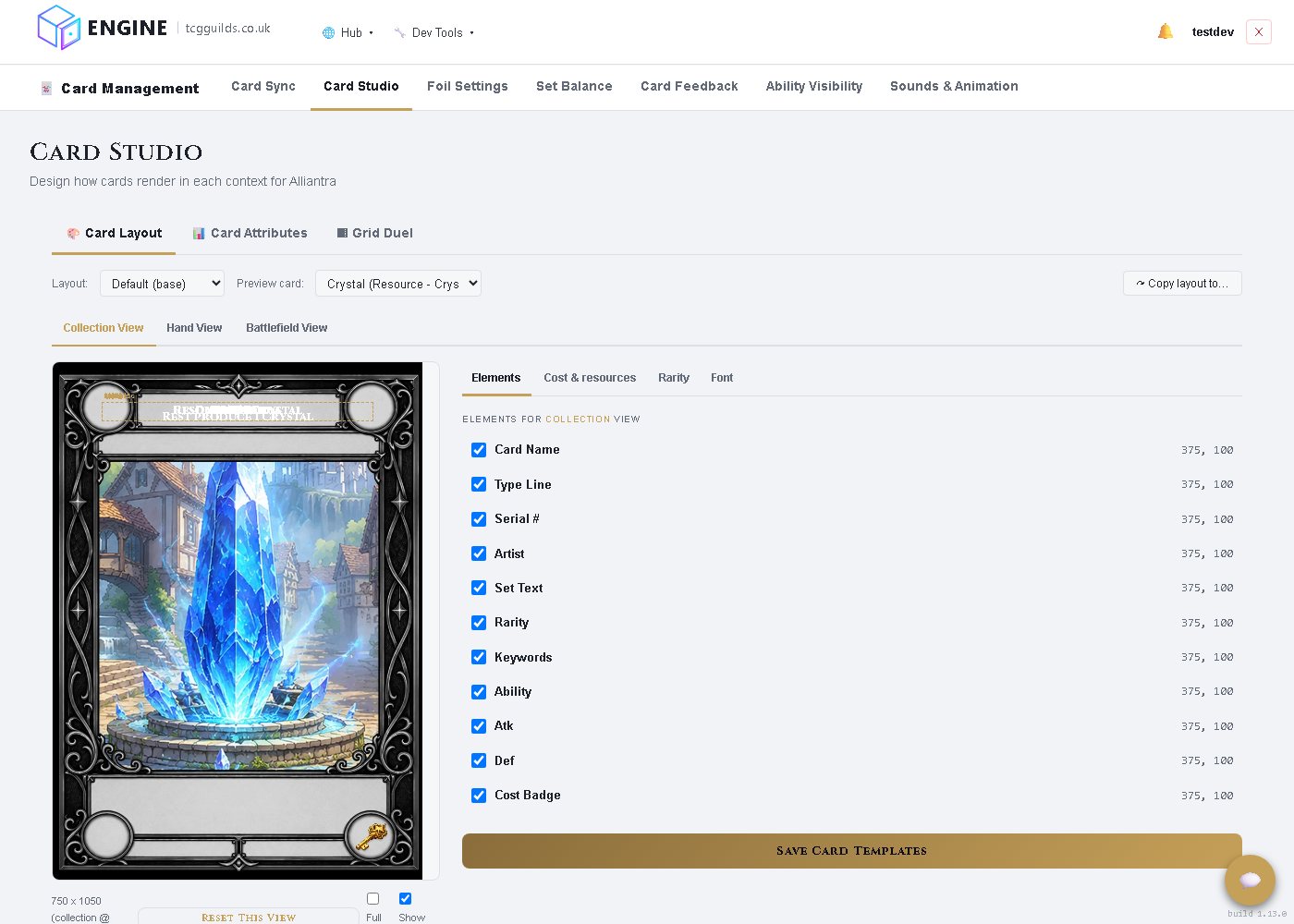
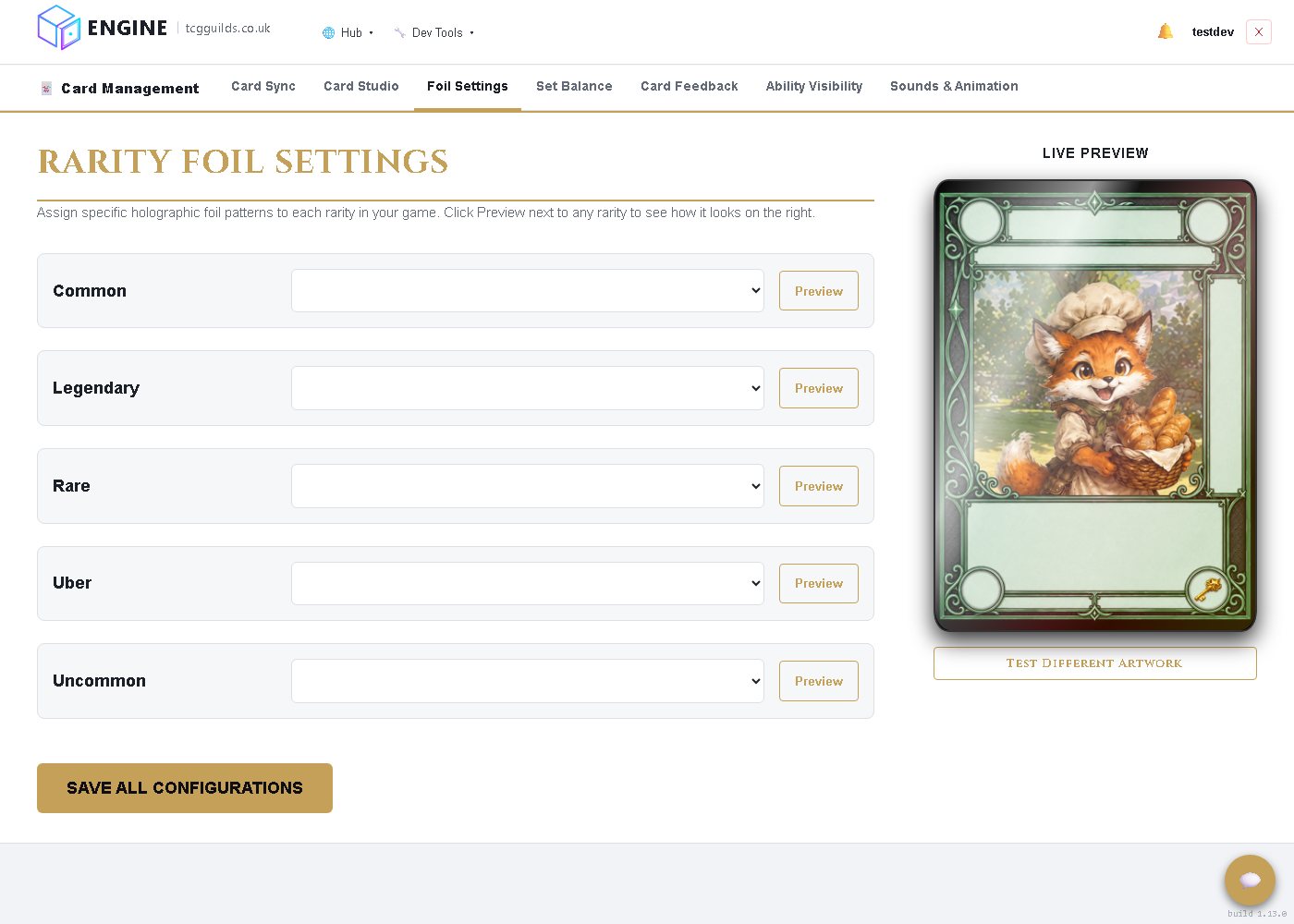
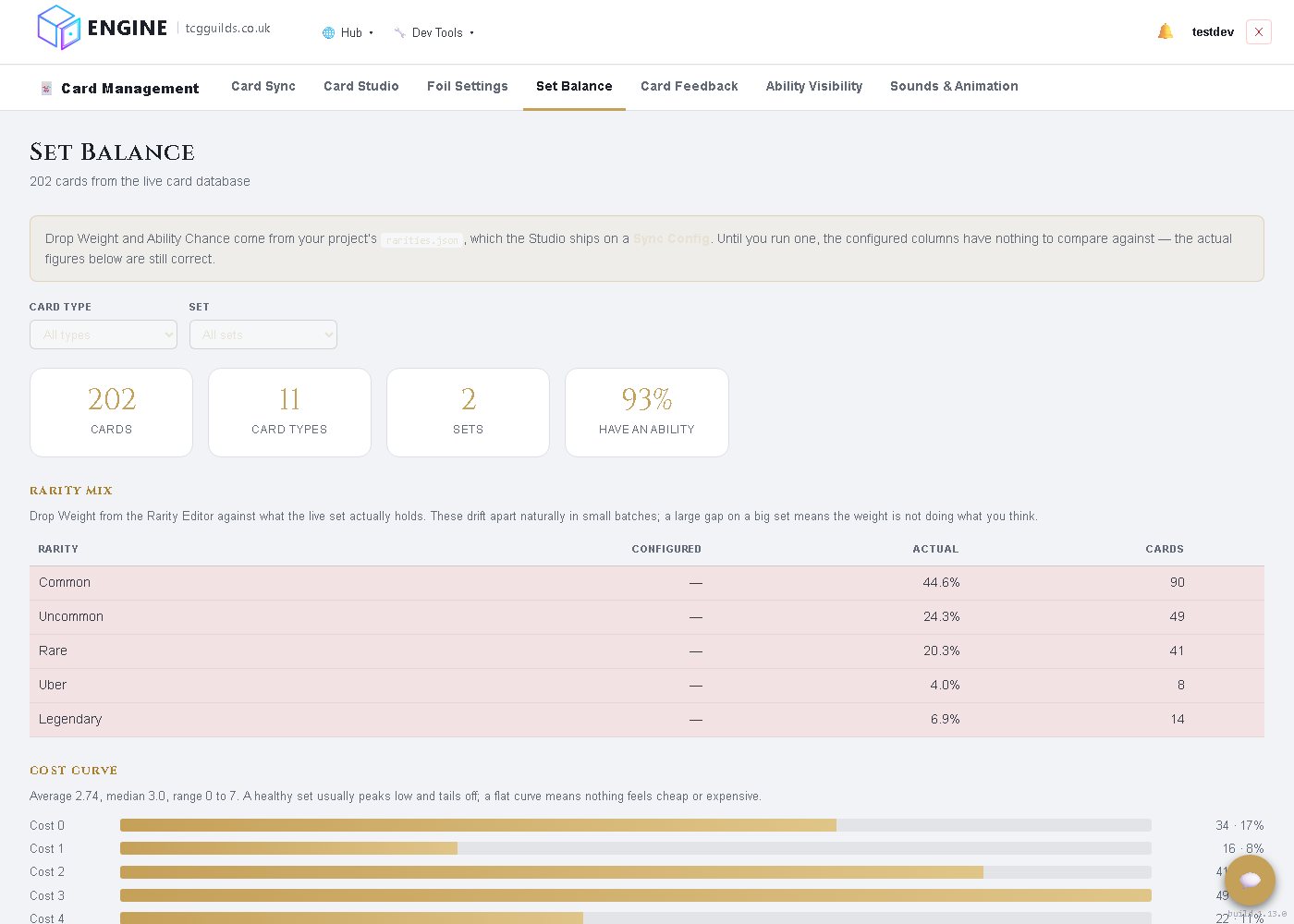
The other tabs are Card Studio, Foil Settings, Set Balance (how your cards perform), Card Feedback (players' ratings and notes), Ability Visibility and Sounds & Animation.
Stores & Packs
Dev Tools › Stores & Packs has three tabs: Boosters, Store and RWC Store.
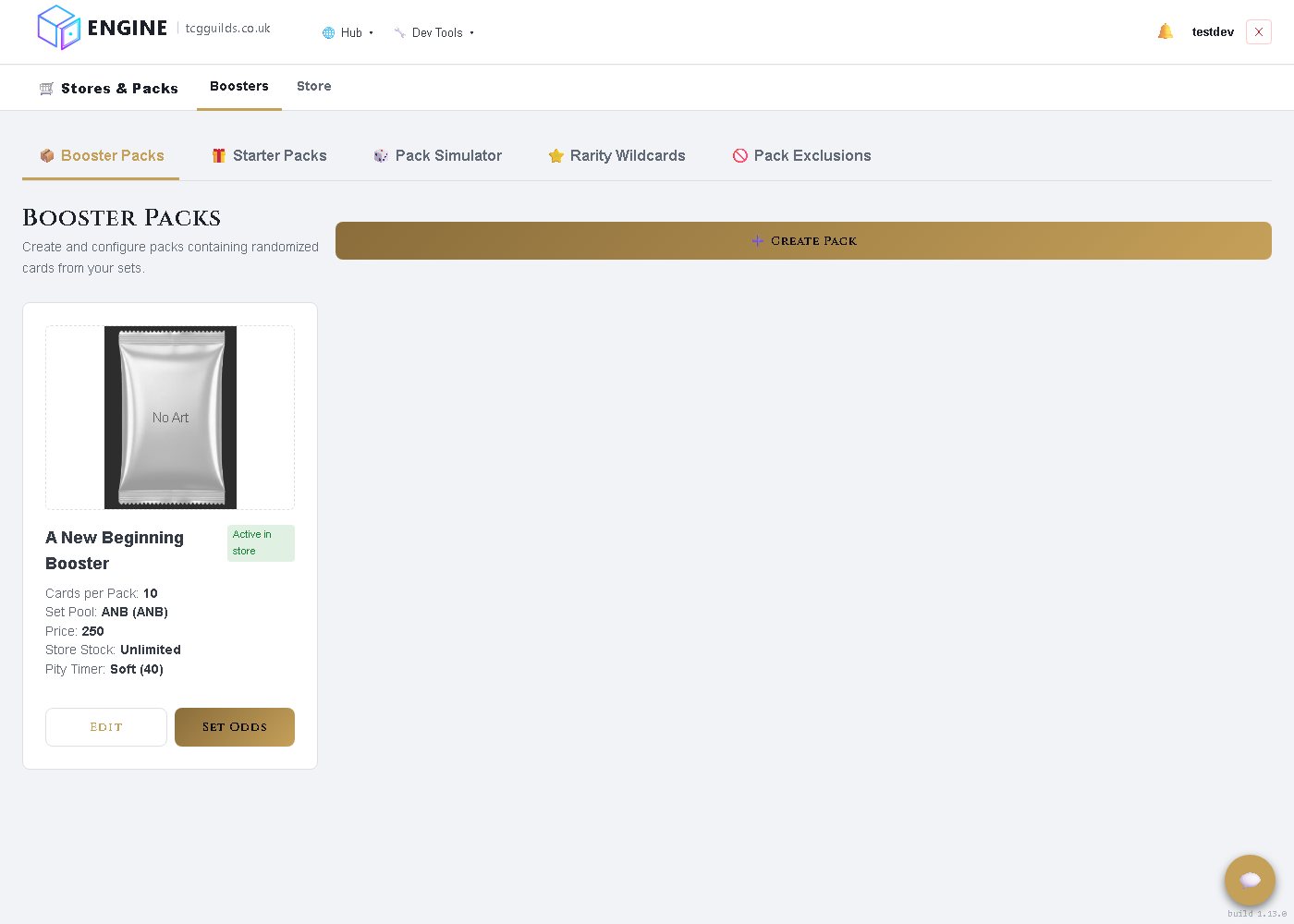
Create Pack sets the name, art and overlay, cards per pack, which sets it draws from, price, stock and the pity timer. Set Odds controls how often each rarity appears. Try a pack in the Pack Simulator before you release it.
Stores & Packs › Store
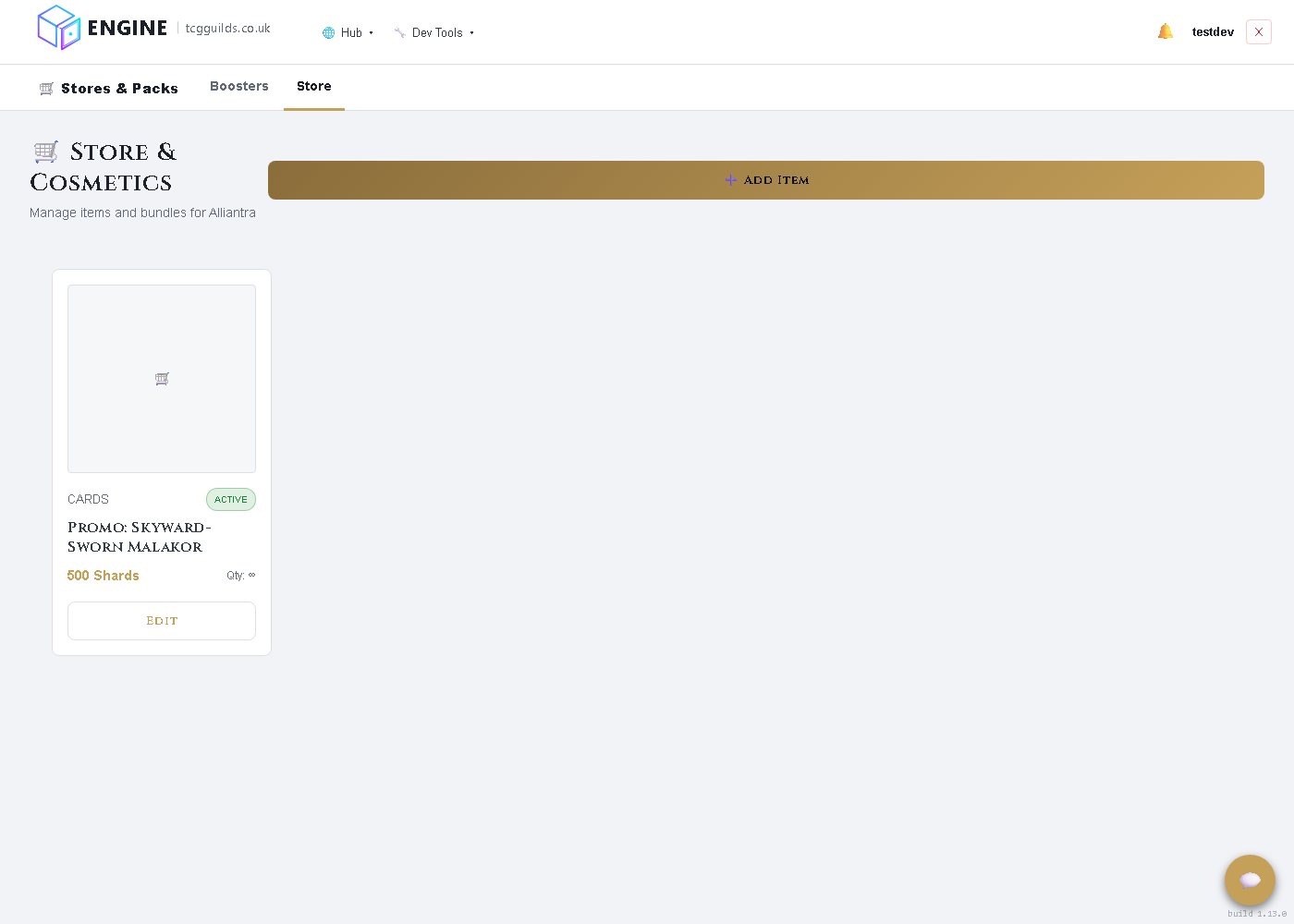
Add Item: playmats, sleeves, avatars, tokens, bundles or single cards. Images must match the size shown for each type. When editing, tick Remove image to clear an item's picture.
Stores & Packs › RWC Store
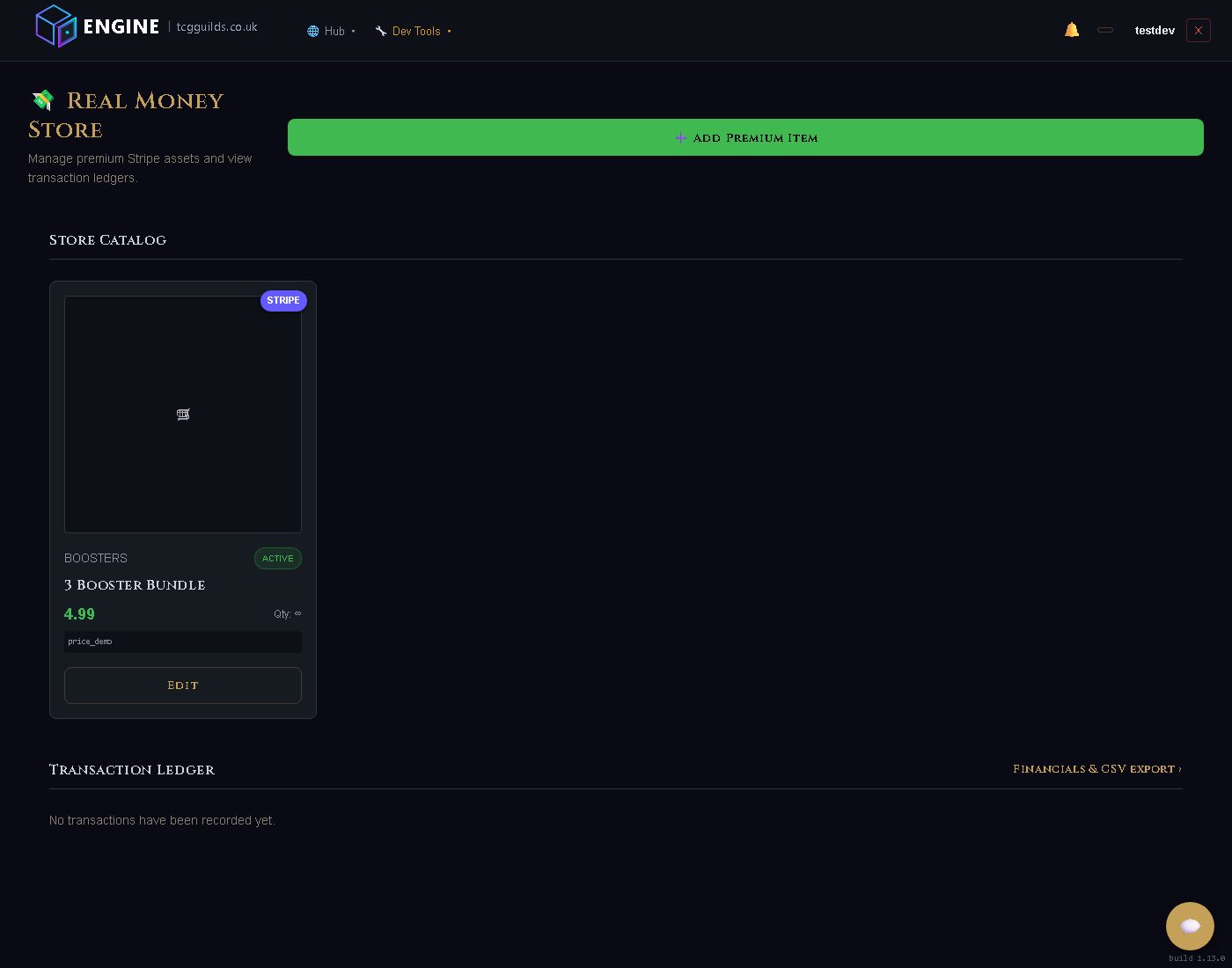
- Available on paid plans once real money is switched on in Payment setup. The tab only appears on a paid plan.
- Item types include bundles, single cards, cosmetics, a Season Pass and Booster Packs - pick one of your packs and how many each unlock gives.
- Single cards and booster packs show the card itself or the pack's art and overlay in the store, so they don't need their own image. Ticking Remove image goes back to that art.
- Each item needs a Stripe Price ID - unless PayPal is connected, when the price alone is enough.
Player Economy
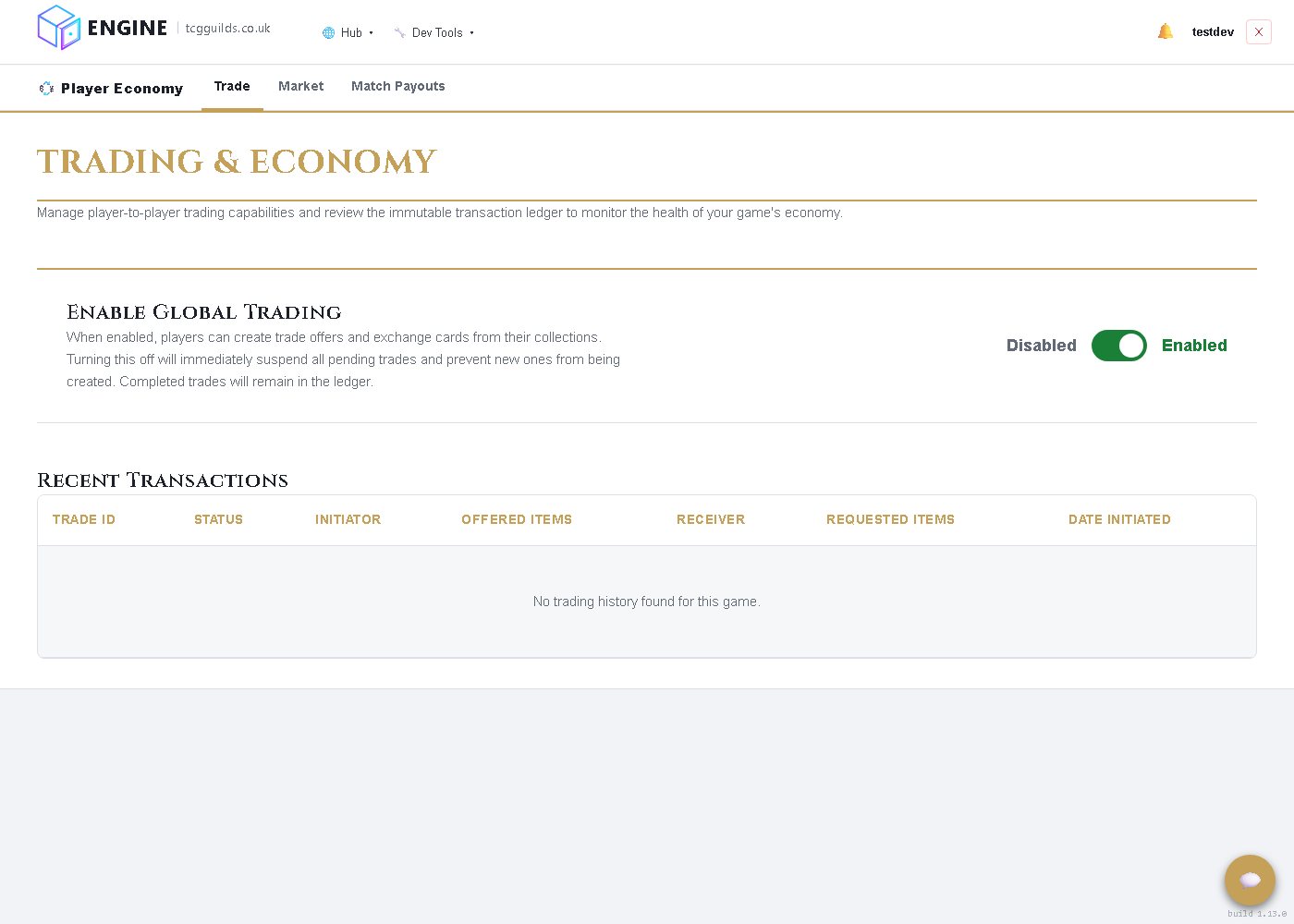
- Trade - switch player-to-player trading on or off, and see recent trades.
- Market - switch the Marketplace on or off, with its active listings and ledger.
- Match Payouts - the currency players earn for each match: base rewards, bonuses and a list of recent matches.
Financials & Payment setup
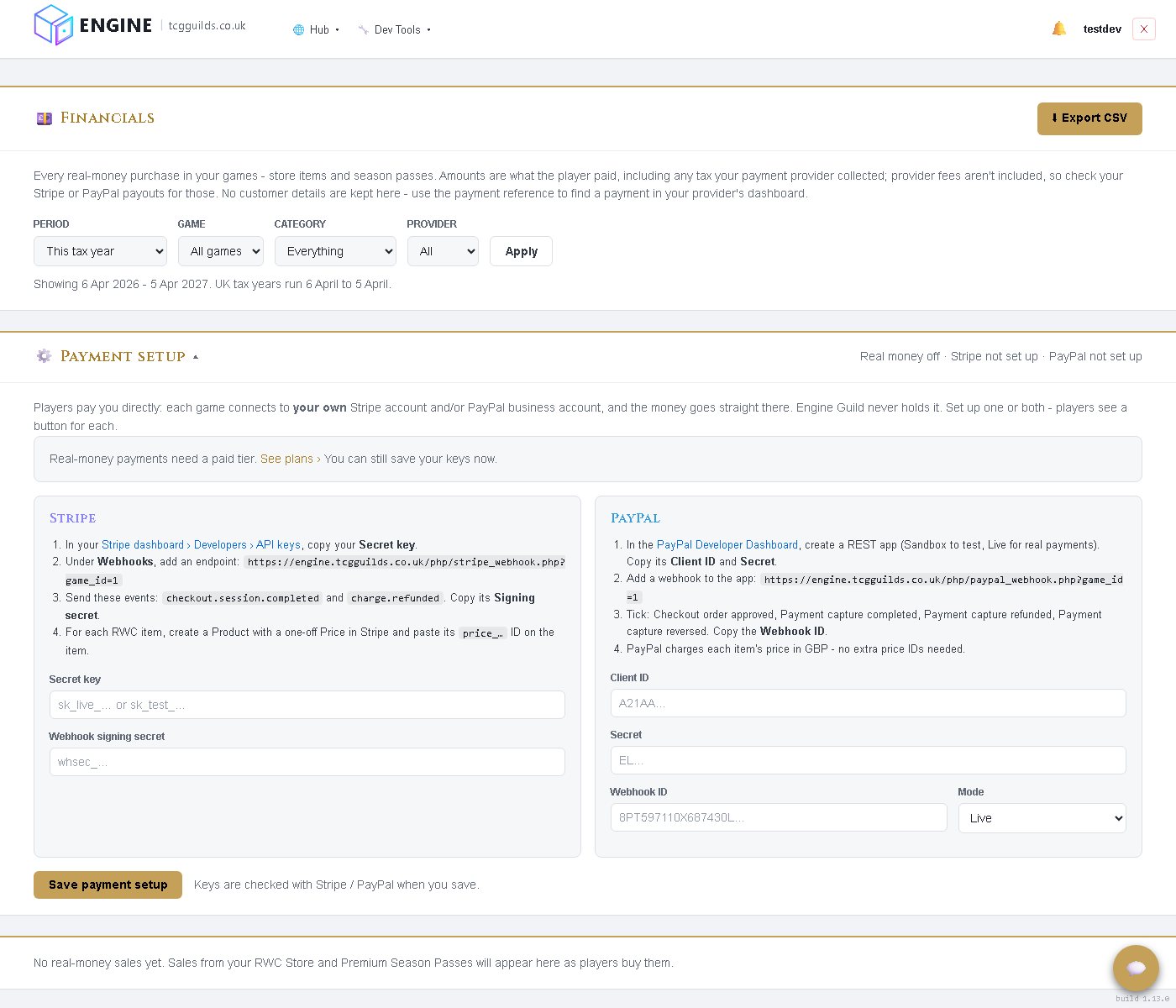
Payment setup. Players pay you directly - each game connects to your own Stripe account and/or PayPal business account.
- Tick Real-money payments on for the game (paid plans).
- Stripe: paste your secret key, add the webhook address shown (events
checkout.session.completedandcharge.refunded) and paste its signing secret. - PayPal: create a REST app in the PayPal Developer Dashboard, paste its Client ID and Secret, add the webhook address shown with the four events listed, and paste the Webhook ID. Choose Sandbox to test.
- Save payment setup. Your keys are checked straight away, and saved secrets are never shown again.
The ledger. Filter by UK tax year, month, year or custom dates, by game, store or season passes, and by provider. You get totals for each currency (gross, tax collected, refunded, net), a month-by-month table, and every sale with a running total. Export CSV downloads exactly what's shown, for your accounts. No customer details are stored; use the payment reference to look a payment up with Stripe or PayPal.
Progression
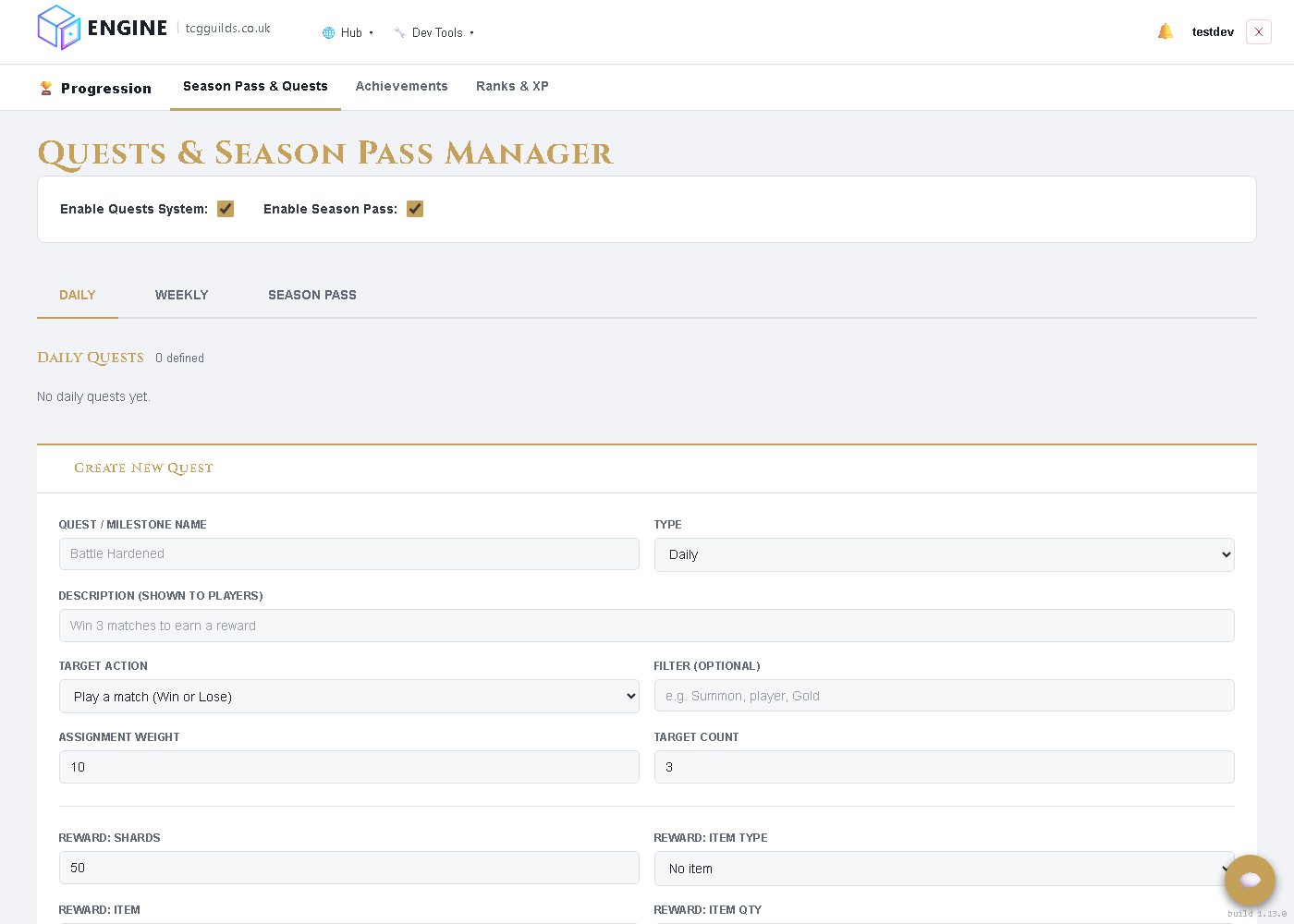
Each quest has a target action (e.g. “Play a match”), an optional filter, a target count and rewards. In the Season Pass section, create a season with dates and theme, add free and premium milestones, and set the Premium Pass price.
The third tab, Ranks & XP, sets the rank mode and the ladder of ranks players climb.
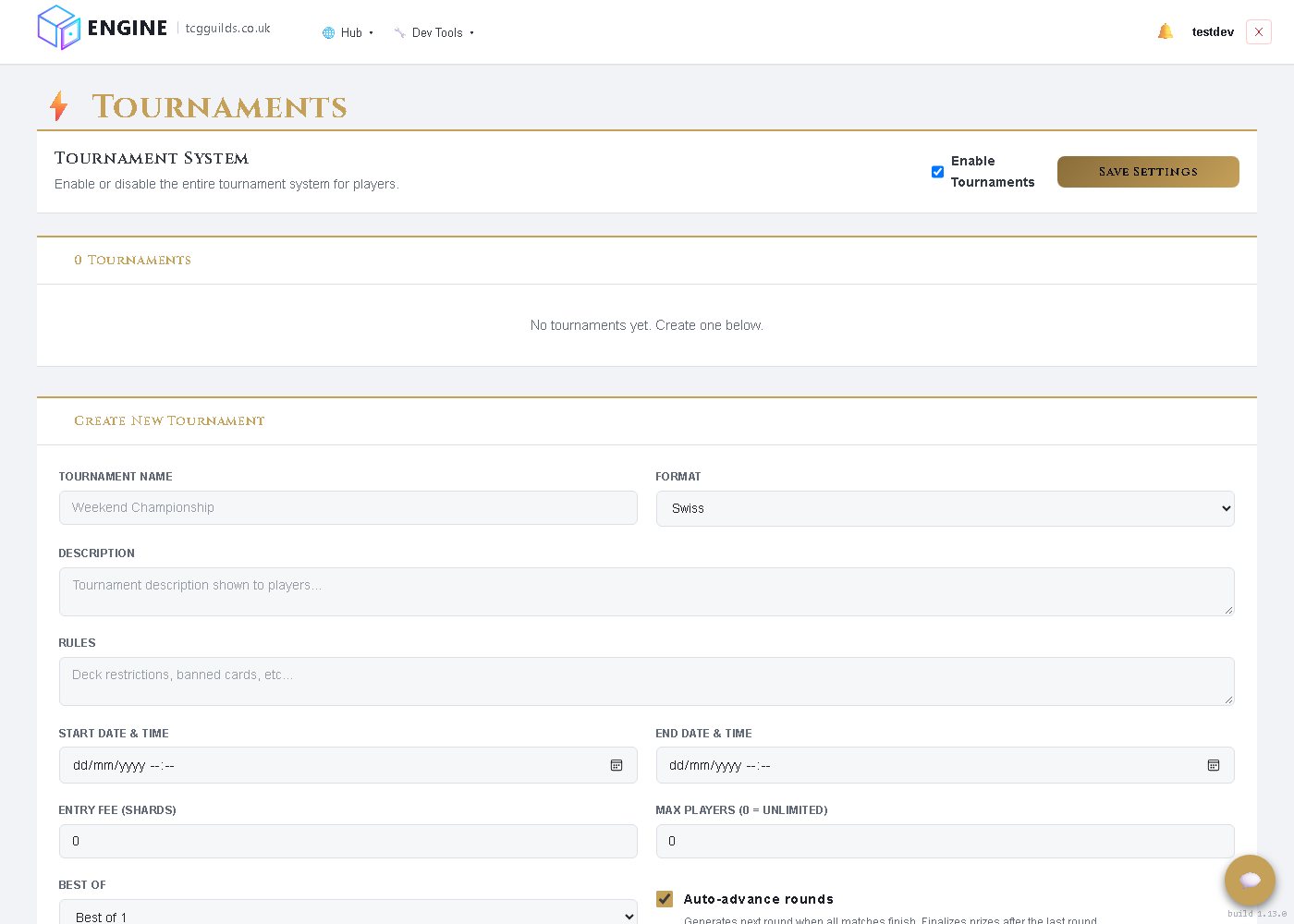
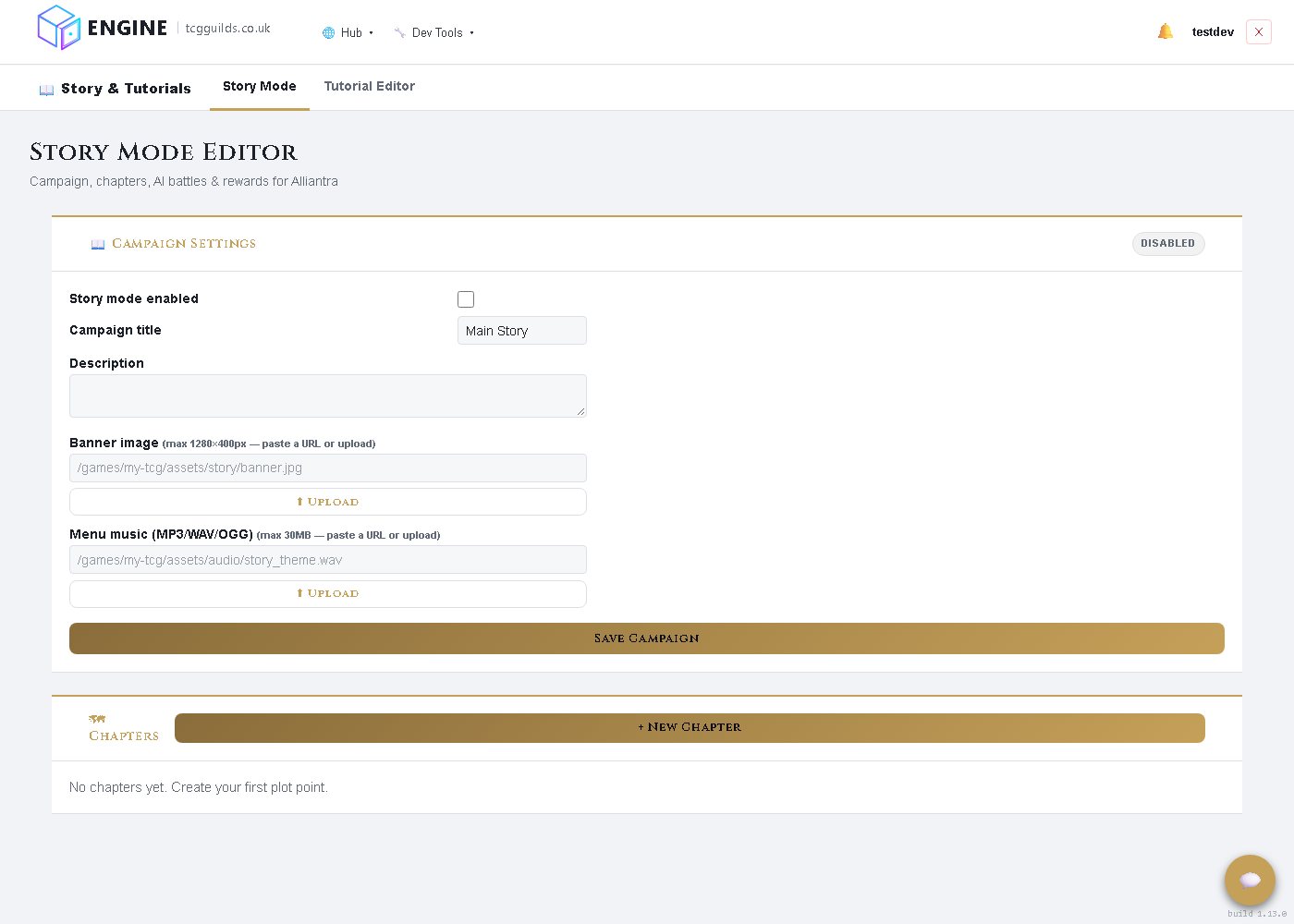
Tournaments, story & the Engine Guide
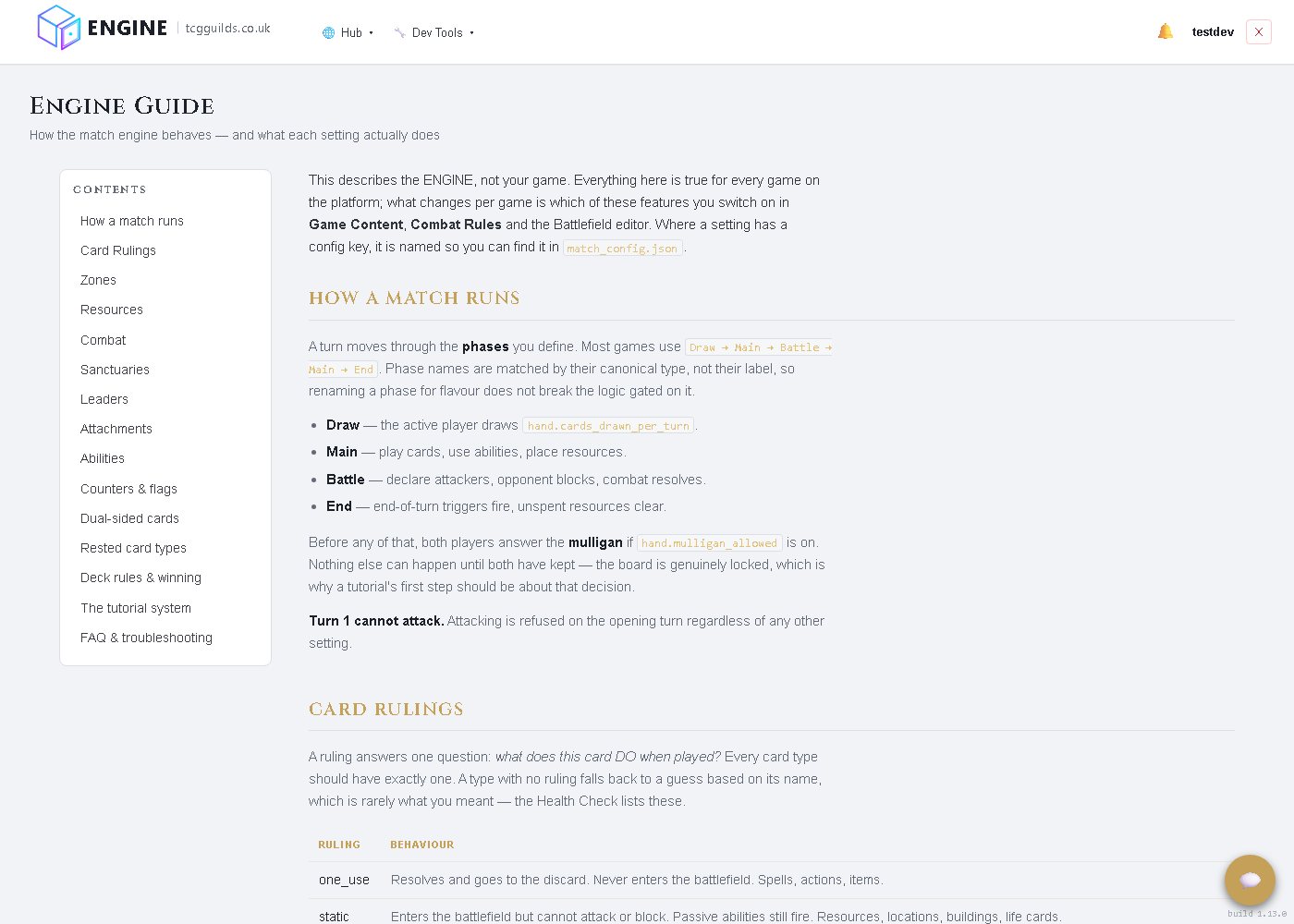
The Engine Guide is a reference to how the match engine behaves, with a “Why is this happening?” troubleshooting section and a “Where has it gone?” list of where each tool now lives.
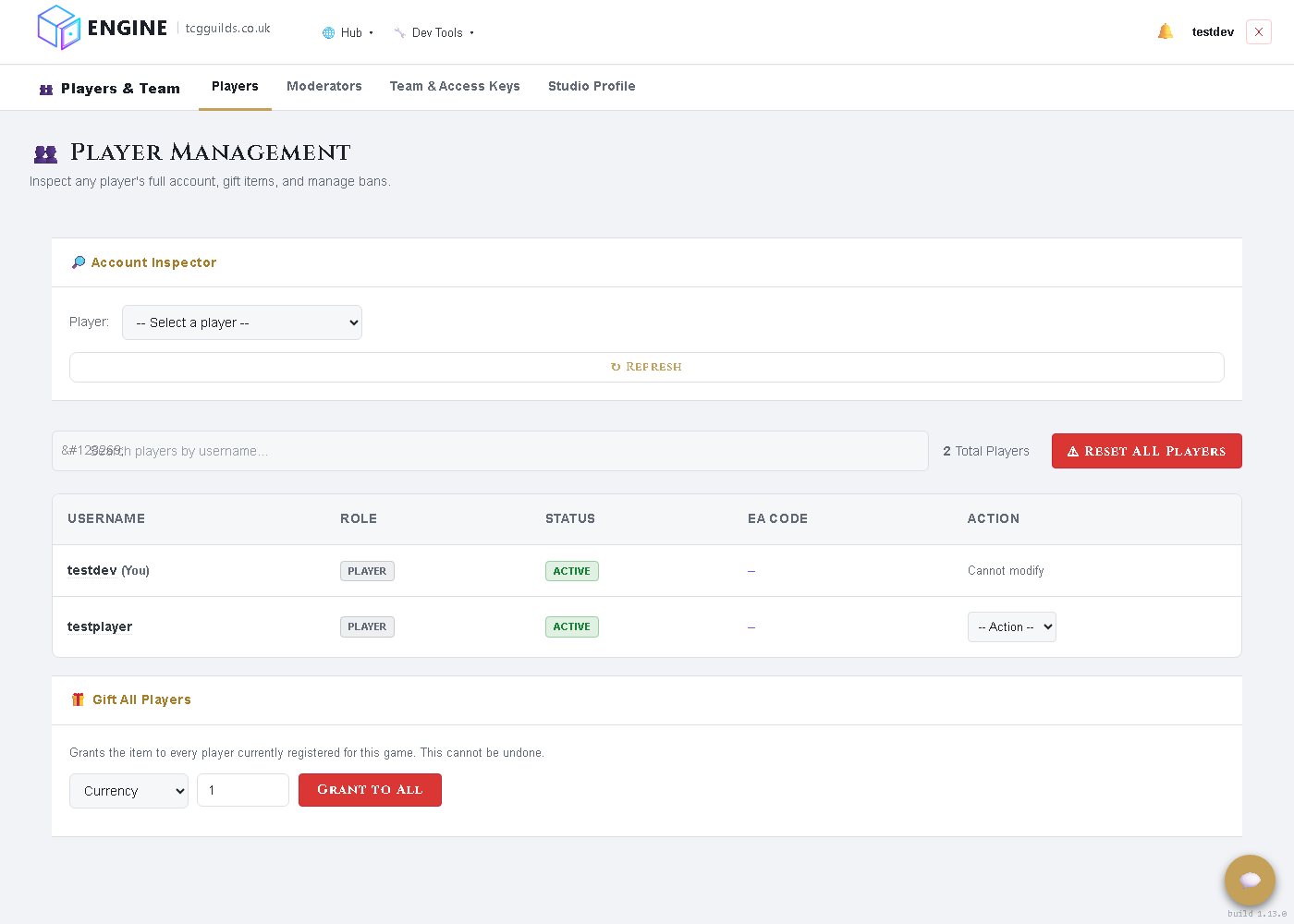
Players & Team
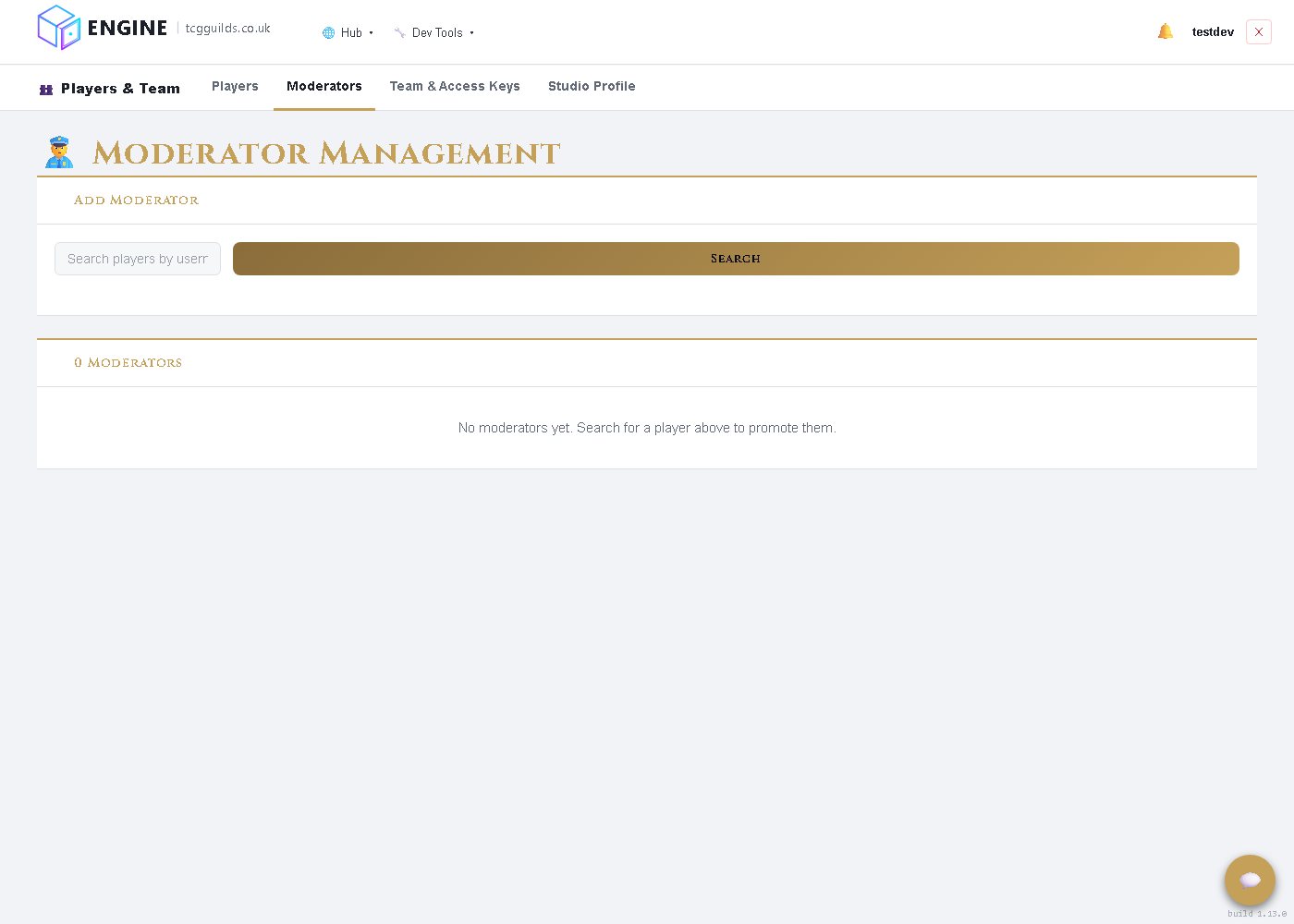
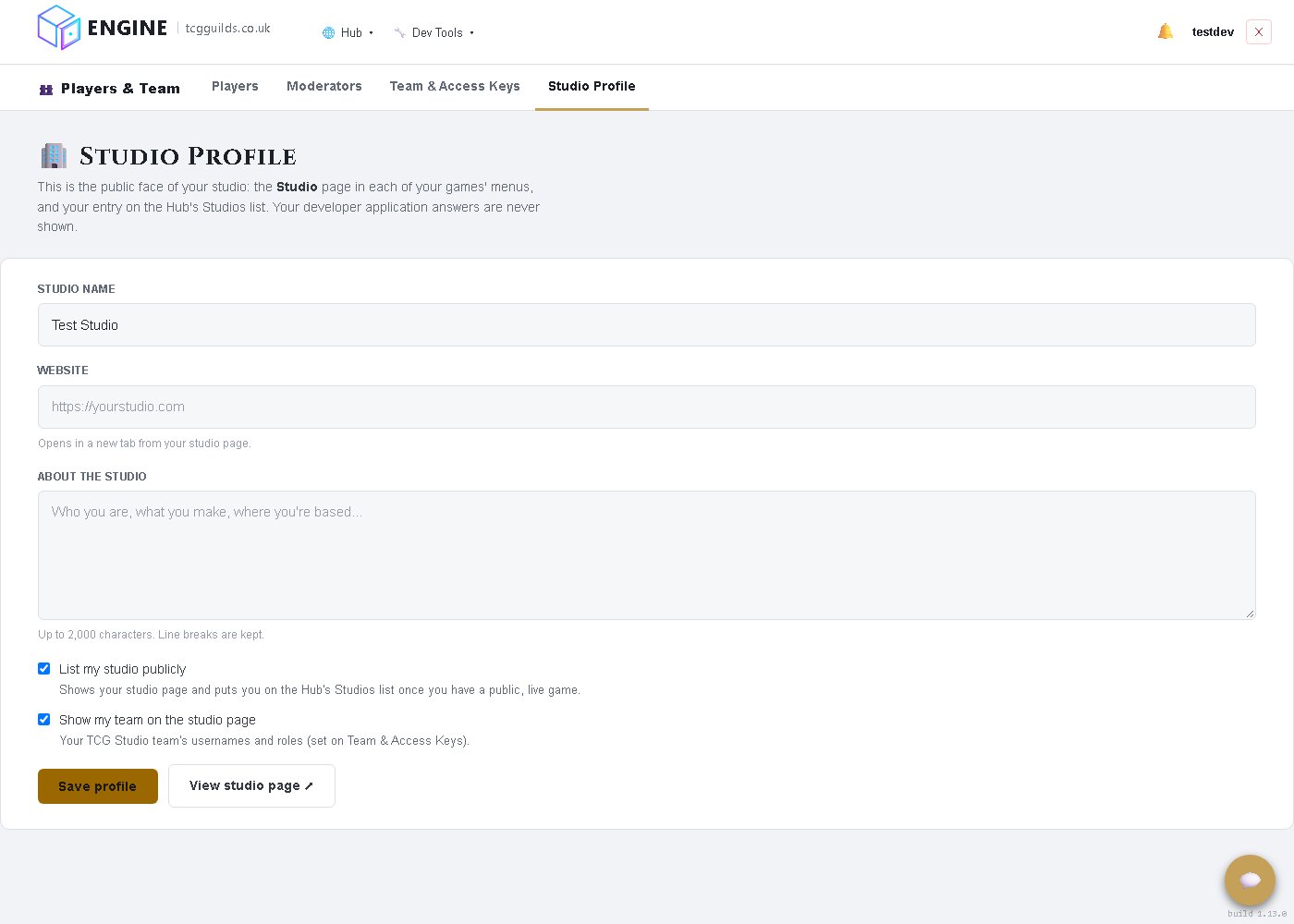
Dev Tools › Players & Team has four tabs.
Players & Team › Team & Access Keys
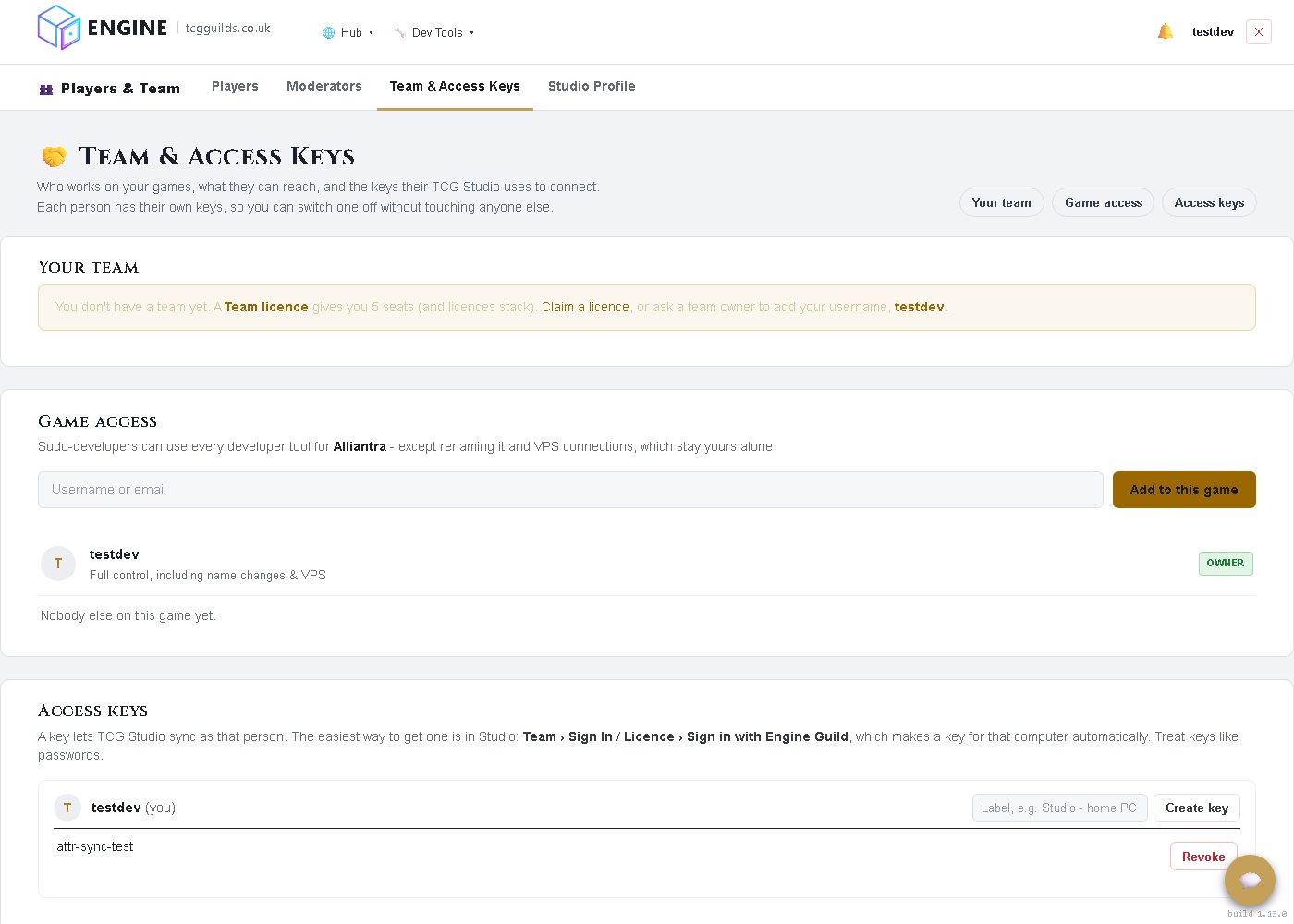
- Your team - a Team licence gives five seats (licences stack). Add teammates by username and give each a role name such as Artist or Designer; Studio shows these in its Team window.
- Game access - add people to a game. They can use every developer tool except renaming the game and the VPS connection.
- Access keys - each person has their own keys, one per computer. The easiest way to get one is Studio's Sign in with Engine Guild. The owner can create a key for a teammate or revoke any key.
Players & Team › Studio Profile
Game Admin
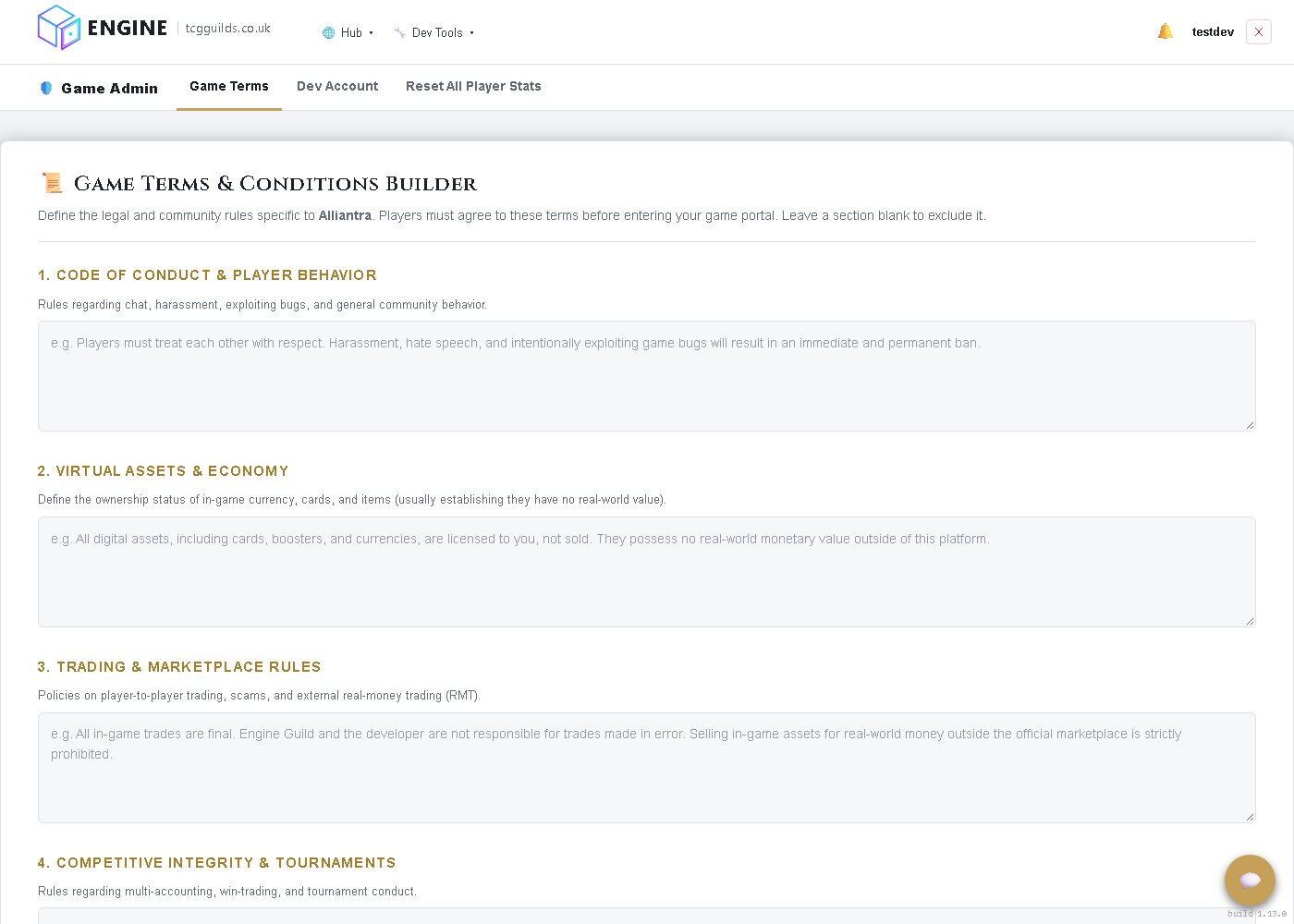
Game Admin also has Dev Account (reset your own test progress) and, for games you own, Reset All Player Stats - use that one with care.
Plans (Secure Access)
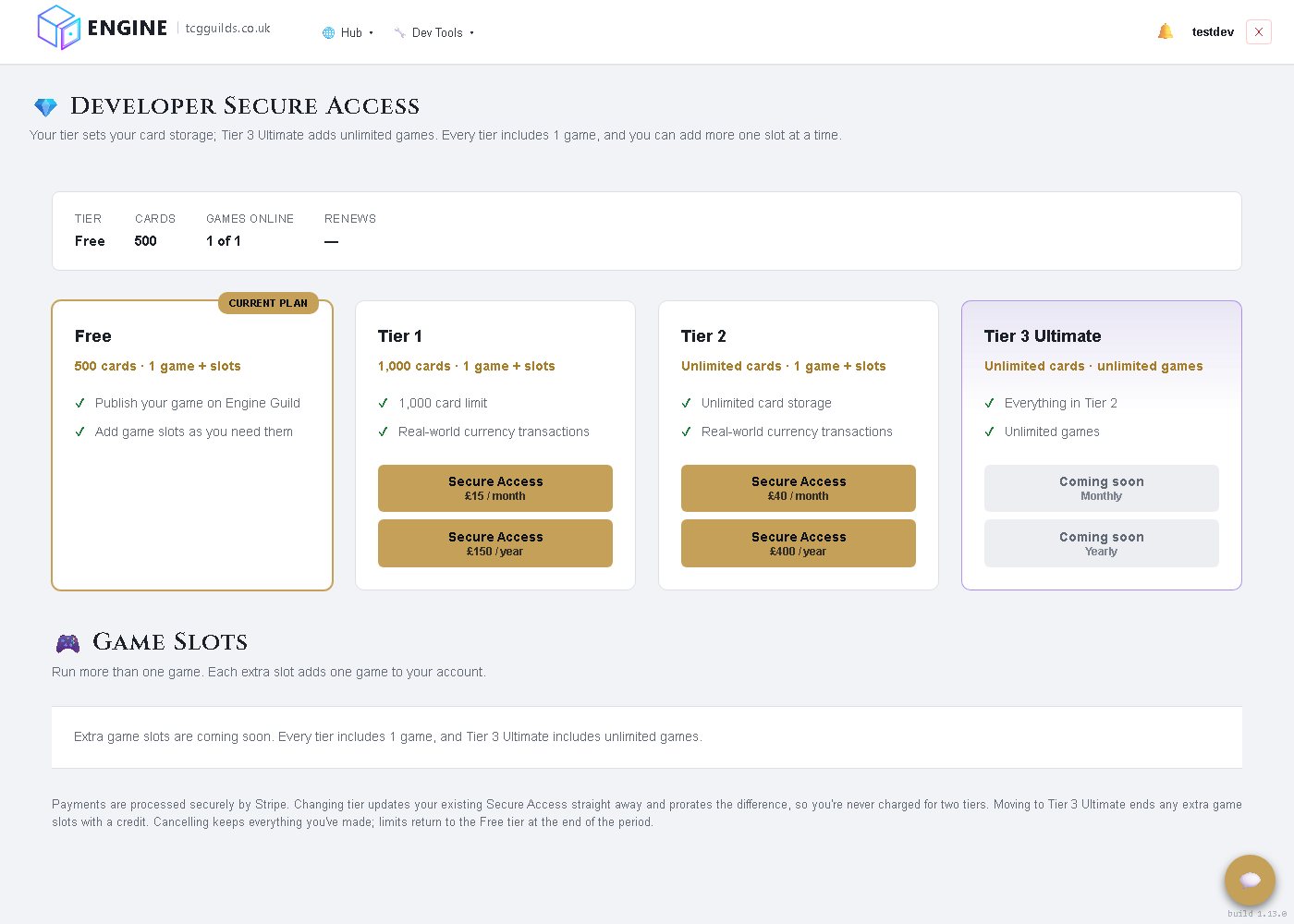
| Tier | Cards per game | Games |
|---|---|---|
| Free | 500 | 1, plus any game slots you add |
| Tier 1 | 1,000 | 1, plus any game slots you add |
| Tier 2 | Unlimited | 1, plus any game slots you add |
| Tier 3 Ultimate | Unlimited | Unlimited - game slots aren't needed |
Upgrades take effect straight away and are prorated, so you're never charged for two tiers. To move to a plan with fewer games, take games offline first.